Creating and editing public holidays - AXM Lite
- AXM Lite open.
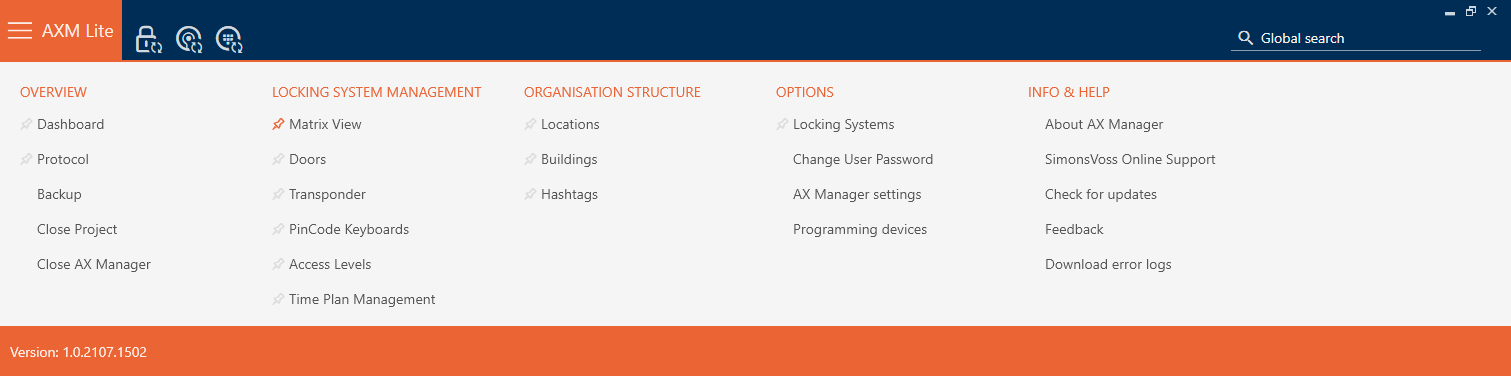
- Click the orange AXM button
 .
. - AXM bar opens.
- Select the entry in the group.
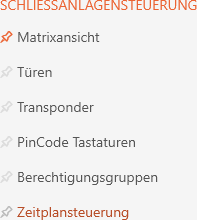
- The AXM bar will close.
- The tab will open.
- Click on the
 button.
- The tab will open.
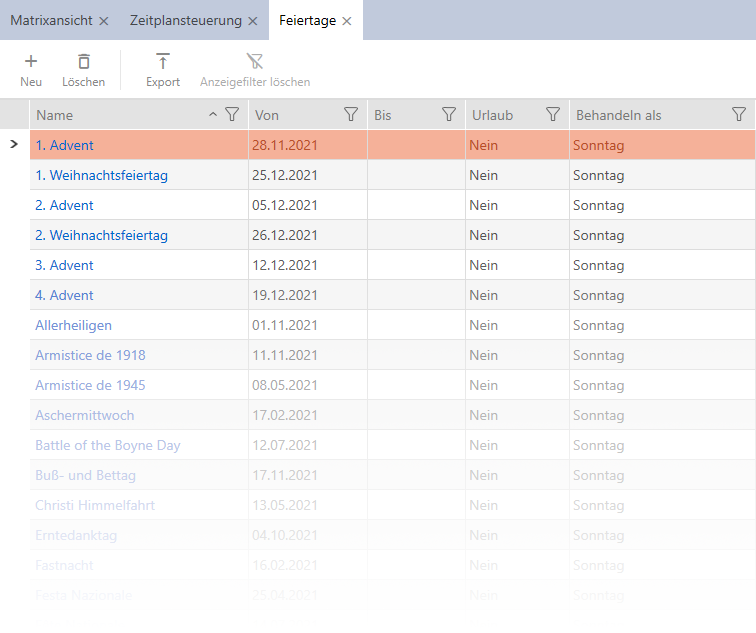
- Click on the
 button.
 - The window for creating a public holiday will open.
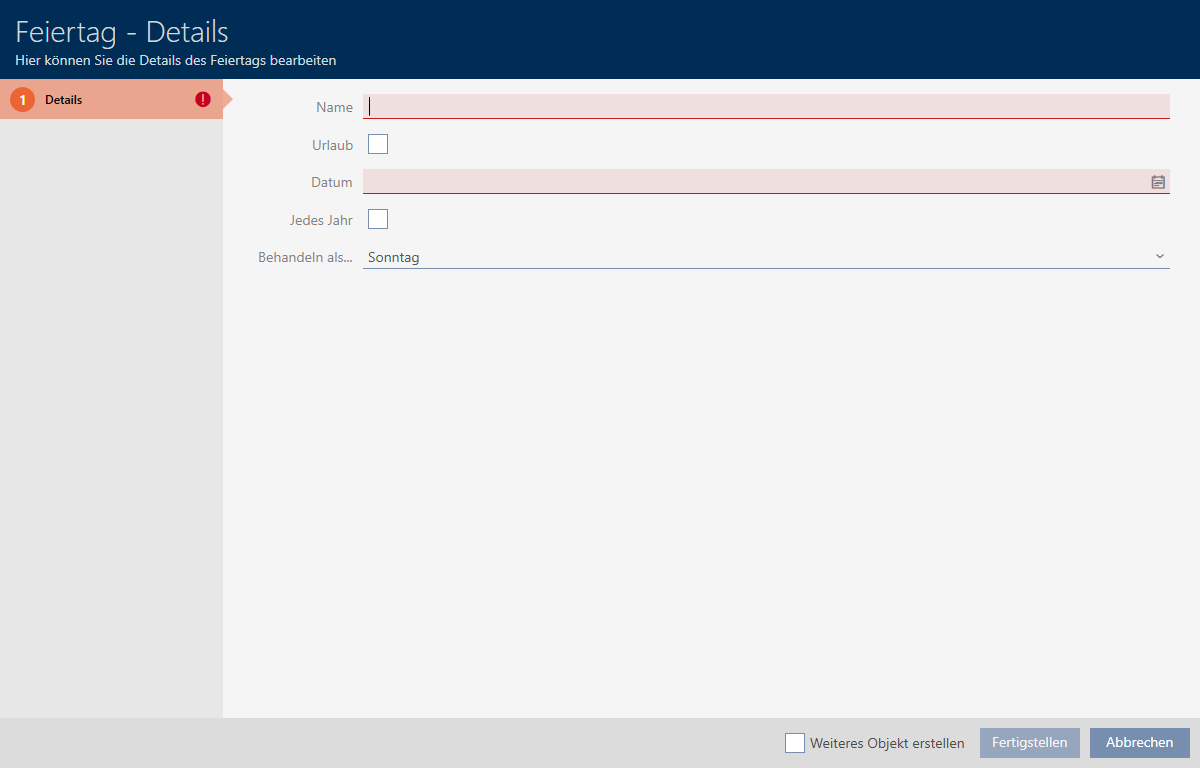
- Enter a name for your public holiday in the field.
- If your public holiday is a holiday: Activate the
 Vacation checkbox.
 - Enter a date in the field or click on the
 icon to expand a calendar screen.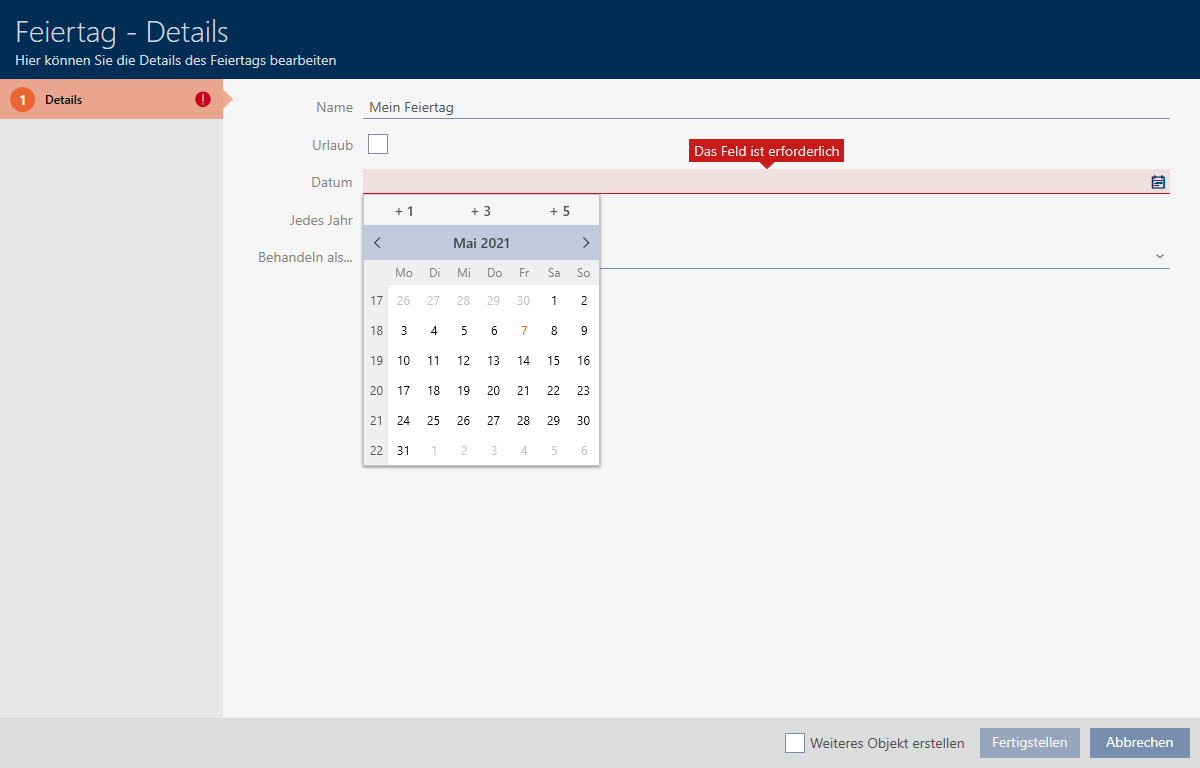
- Select which of the available days should be used in the schedule for your holiday from the drop-down menu (, , , , , , & ).
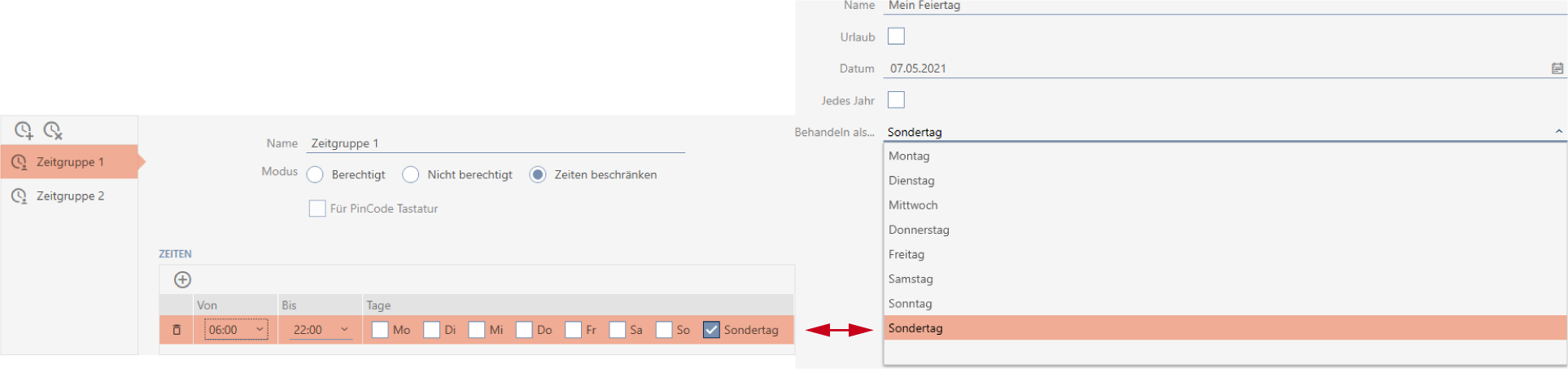
- Click on the button.
- The window for creating a public holiday will close.
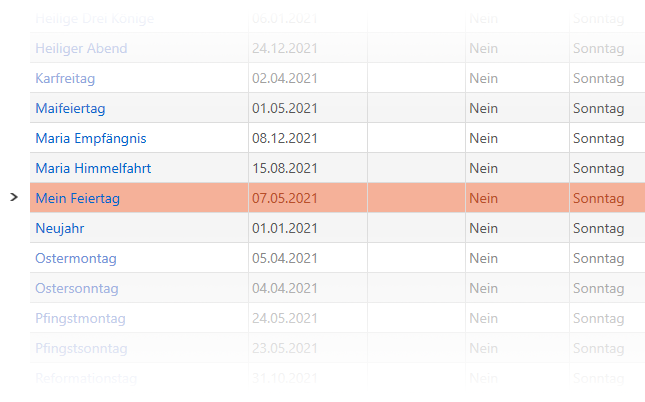
- The public holiday has been created and is listed.