Functions test - Locking cylinder (Z4) DoorMonitoring
The functions test verifies that the complete communication chain from the sensors to LSM function correctly
The following tests need to be performed
- The locking plan is open
- The DM cylinder is incorporated into the SimonsVoss network (WaveNet)
- The DoorMonitoring status is displayed in the locking plan
- or - - The properties in the cylinder 'Door monitoring status' tab are open
- The individual test results can be checked in LSM
- Opening the door
- Closing the door
- Rotate the cam bit once » lock. Repeat until the bolt is fully extended, depending on the number of turns required in the lock
- Rotate the cam bit once » open. Repeat until the bolt is fully withdrawn, depending on the number of turns required in the lock
- Opening the door
- Leave the door open until the 'Door open too long' message appears
Calibration tool
This offline cylinder test is carried out with a separate calibration tool if the DoorMonitoring cylinder is set up or operated offline or the test is part of an error search if statuses are incorrectly displayed or are not displayed at all during an online test.
We recommend the calibration tool if
- The DoorMonitoring Cylinder is not networked. In such a case, you can check status changes with the tool
- The DoorMonitoring Cylinder is being set up by one person. In such a case, status changes cannot be checked directly in LSM
- The functioning of the DoorMonitoring Cylinder is to be checked for error diagnosis
The calibration tool is installed on an external portable computer and connected to LSM Mobile. A programming device connected to the computer is required
Installing the calibration tool
Install the calibration tool on a portable computer, so that the cylinder can be checked on the door
Insert the LSM software CD and launch the installation routine (DMCalibrate_3_x_xx.exe)
Follow the instructions in the installation wizard
Exporting configuration
- A DoorMonitoring Cylinder has been added to the locking plan and programmed
- The calibration tool is installed on an external portable computer
- A SmartCD.G2 programming device is connected
- Launch the 'DM Calibrate' software
- The DoorMonitoring Cylinder configuration data is exported in the same way as to LSM Mobile
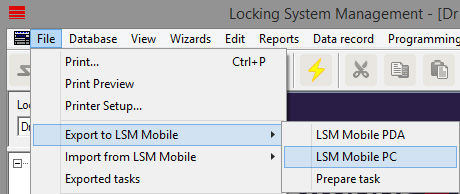
- Click on 'File' in the menu
- Select 'Export to LSM Mobile' » 'LSM Mobile PC'
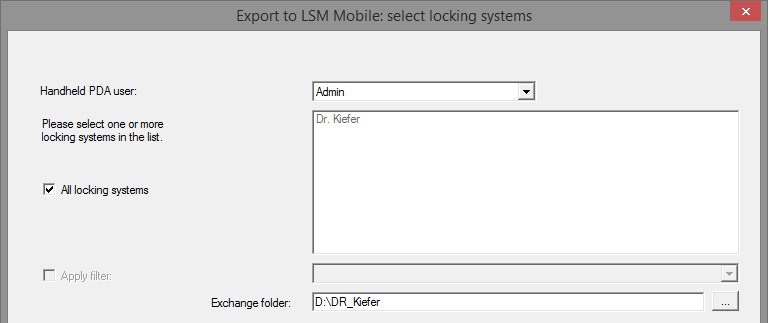
- Select the locking system
- Indicate the folder where the programming tasks are to be saved
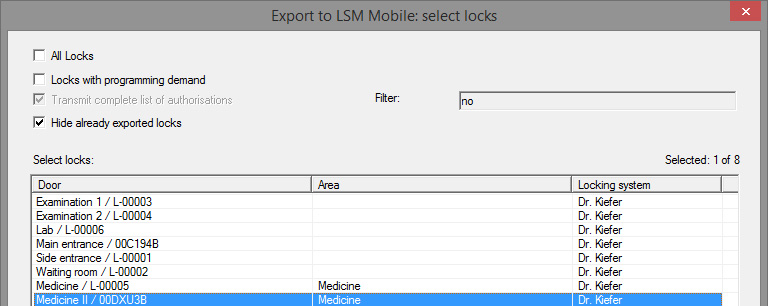
- Highlight the locking devices which are to be exported
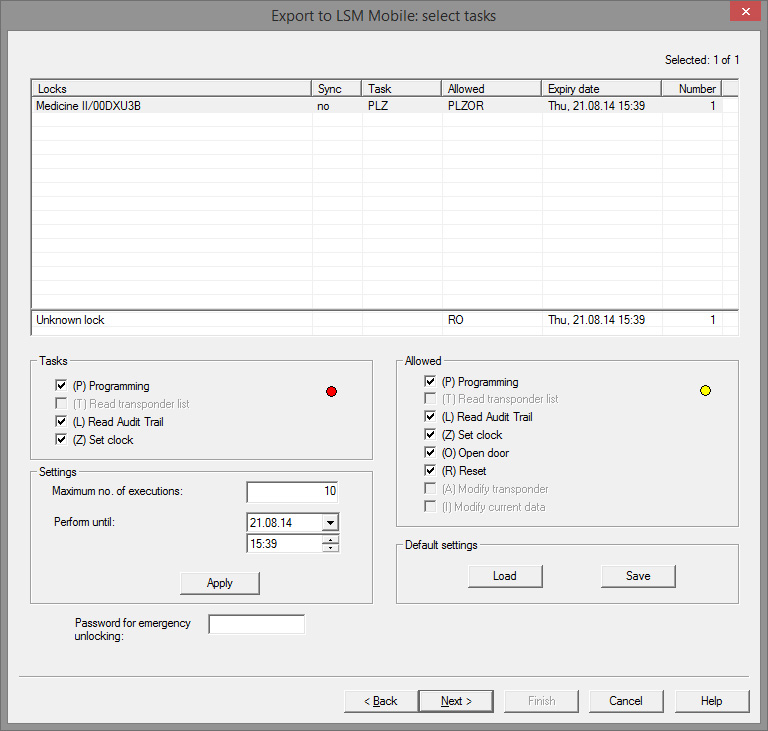
- Highlight the permitted actions and tasks
- Highlight the locking devices and increase the 'Maximum number of executions.' A number between 1 and 10 is possible
- Carry out the next steps
- Once the tasks have been saved, copy the folder to the portable computer
- Connect the SmartCD to the portable computer
- Launch the 'DM Calibrate' program on the portable computer
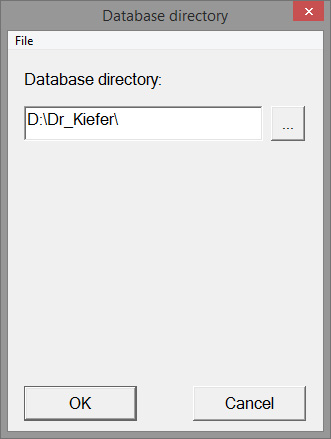
- Select the folder with the programming tasks
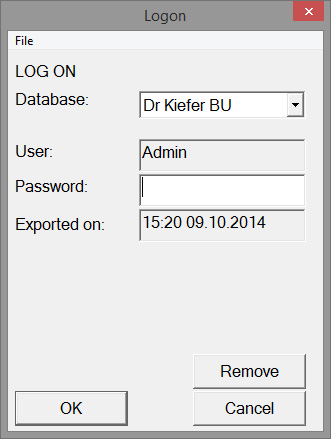
- Log on using the database password
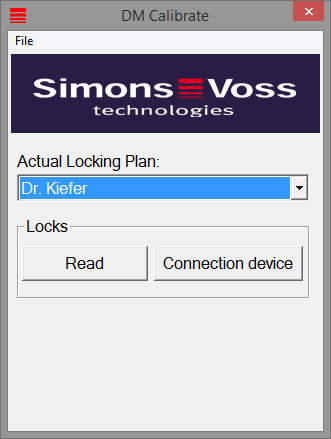
- Click on [Attached device]
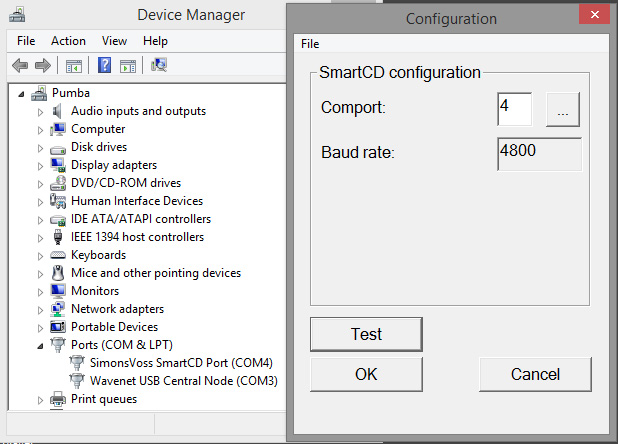
- Enter the COM port
- Click on [Upload]
- The menu will appear with the calibration steps
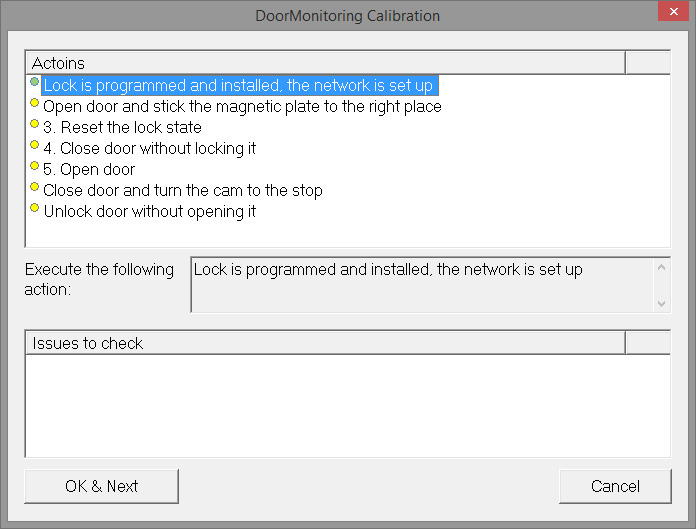
- Follow the instructions and confirm by pressing [OK & Next]
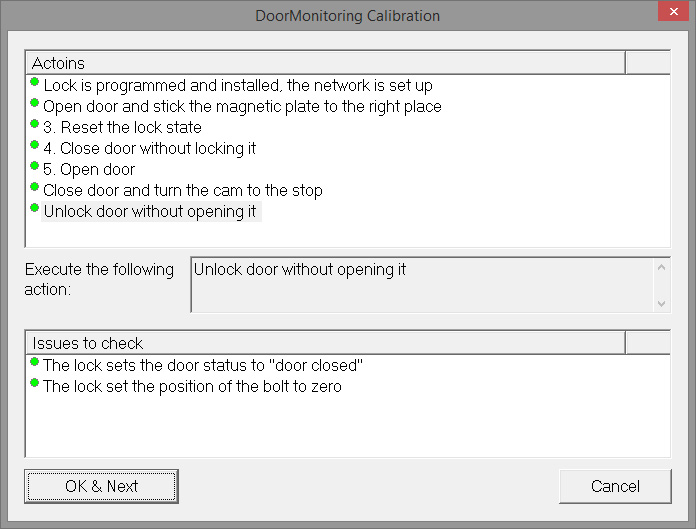
- As soon as all actions are complete, exit DoorMonitoring calibration
- Copy the files back onto the computer where the locking plan is located
- Import the tasks via File » Import from LSM Mobile » LSM Mobile PC
Calibration tasks
There are seven designated steps for calibration
|
Steps to be carried out |
Explanation |
|---|---|
|
1. Locking device is programmed and installed. Network is installed |
Confirm that these tasks have been completed. Network is not absolutely necessary if the cylinder is operated offline. |
|
2. Open door and affix the magnetic strip to the correct position |
Confirm after the magnetic plate has been attached to the striking plate opposite the fastening screw. Affix the plate loosely first, so that it can be moved if necessary |
|
3. Close door but do not lock |
Carry out step and confirm. The cylinder is read after confirmation |
|
4. Open the door |
Open the door. The cylinder is read after confirmation |
|
5. The locking device's bolt position is initialised |
Confirm. The cylinder is read and initialised after confirmation |
|
6. Close door and lock fully |
Lock door. After confirmation, the cylinder is scanned and the number of cam rotations until the door is securely locked is detected. The user is asked if the number of rotations is to be entered |
|
7. Unlock door without opening it |
Unlock door. The cylinder is read after confirmation |
A traffic-light-style indicator displays the status in addition to the individual step:
- Yellow: step not yet implemented
- Green: step complete and positive feedback
- Red: indicates an error. Either the step has not been followed or an error has been detected
NOTE

Note on anti-panic cylinder: There is no monitoring of bolt movement in the DM.AP2 Cylinder. This is why you need to carry out Steps 1 to 4 when checking the DM.AP2 Cylinder. You can skip the other steps. Press [OK & Next] and ignore comments.
Check magnet position
If the door has been closed, but the calibration tool does not recognise that the door is closed (Step 3), the position of the magnetic plate needs to be checked or the number of magnetic plates needs to be increased.
Step 4 should also be performed on the door while ajar. If the door is identified as closed when it is ajar after Step 4, the magnetic field is too strong.
Move the plate further towards the centre of the frame or make the plate smaller