Creating an XML - SmartIntego OSS
- Start the SIOSSHost tool.

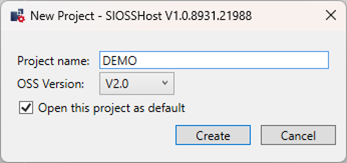
- Create a new project. Enter the following information to do so:
- Project name
NOTE

The name of the HOST project must be identical to the project in the Configuration Tool.
- XML version
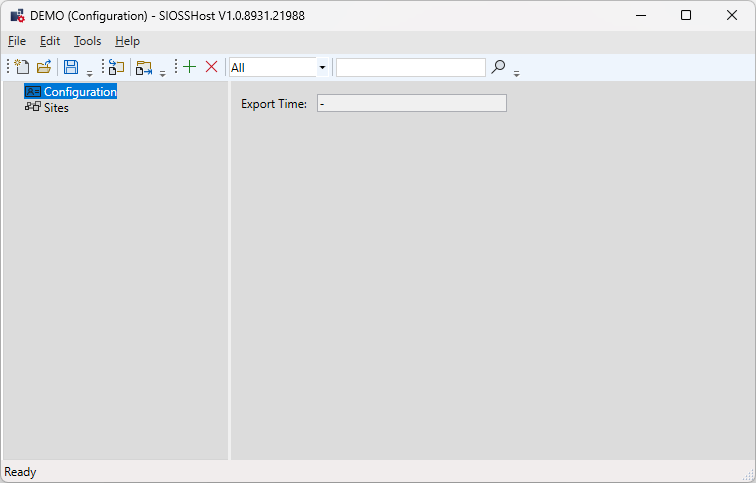
The program starts with the Configuration overview, which only shows the last export time.
The program consists of:
- A menu bar for further configuration options
- A toolbar for frequently used tasks
- The project navigation (left)
- The Sites page with details of the selected component
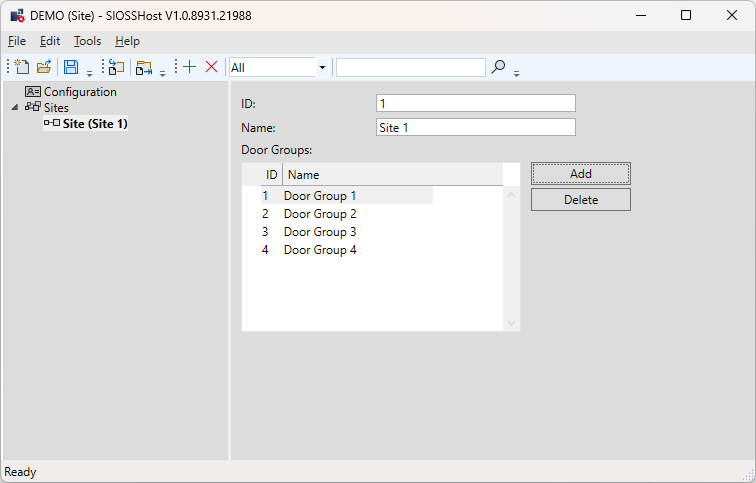
Creating a new site:
An OSS system can be divided into 65,536 sites. 65,536 locking devices can be entered per site. Sites are usually created by location (e.g. building 1 = site 1, …). In front of each site (e.g. at the entrance), there is a card updater which enters the correct site for the locking devices behind it on user cards. The site(s) used must match that of the host system. You cannot use the system without a site. This means that even if no sites are required, you always need to indicate one. A site can contain up to 65,536 offline locking devices.
- Select “Sites” in the navigation tree and use the
 button to create a site.
 - Select the site and configure it if necessary.
You also need to specify the site’s groups here and assign them individually to the locking devices at a later stage. 65,536 can be created per site.
Adding a new locking device:
- Select the required site in the navigation tree and use the button to create a locking device.
The following can be changed in the locking device configuration:
- ID
- Name
- Group membership
- Standard opening hours
- Extended opening hours (for user cards that require extended opening hours)
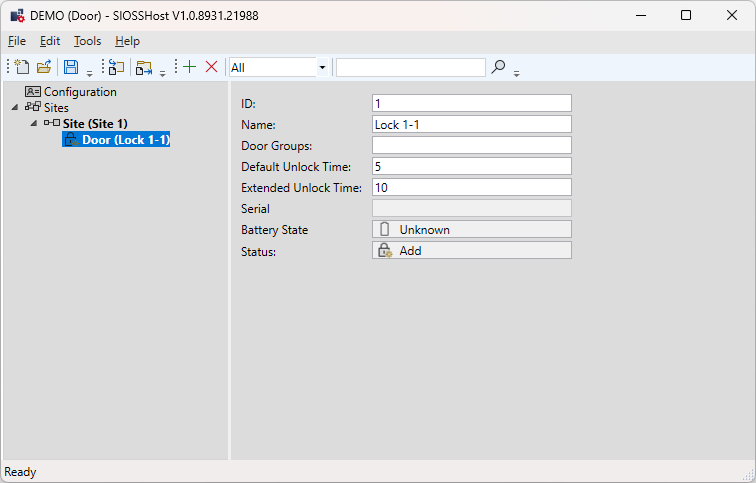
Locks can also be created and changed. Please note, however, that only in version 2.0 can locks be deleted via the Delete button.
OSS does not provide a delete function in XML version 1. To reset locks, the lock must be read via Tools - Card Reader (or SmartStickAX) - Read unknown Lock ... and reset with Reset. The locking system password is required for this action.