Events - MobileKey Locking cylinder (Z4) DoorMonitoring
Events in the network are linked to one or more targeted responses in Event Manager. The LSM software can trigger a pre-set response to certain events, such as an open door. Responses include a pop-up message on a computer in the network, activation of an alarm siren and an email sent to the security officer's mobile 'phone. You can enter the day of the week and time to determine the time period within which a response is to be given to an event.
Special events have been created for the DoorMonitoring Cylinder. This section gives a short overview of Event Manager and events. You can find more information in the 'LSM – online' manual
- LSM Business or Professional
- Locking device network connection
- Online module licensed
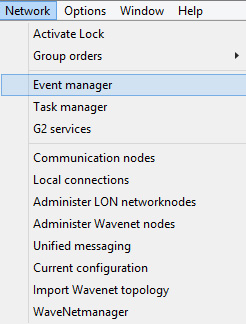
- Click on 'Network' » 'Event manager' to open event manager
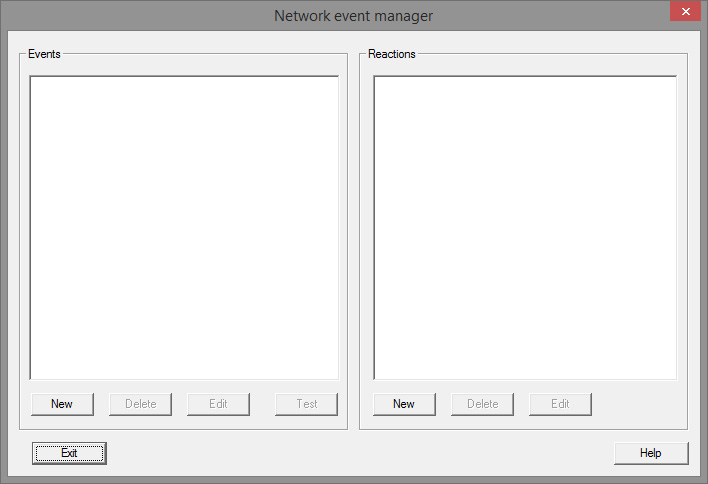
- Click on [New] to create an event
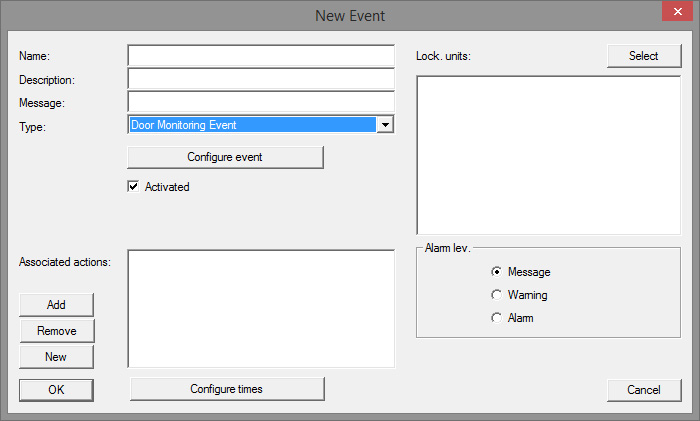
- Select 'DoorMonitoring event' as the type and assign a name for the event
- Click on [Configure event]
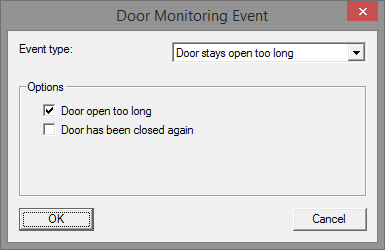
- Select the event type and required option
- Door status | Options: 'Door open' / 'Door closed'
- Dead bolt movement | Options: 'Door not locked' / 'Door locked' / 'Door securely locked'
- Door stays open too long | Options: 'Door open too long' / 'Door locked again'
- Manipulation attempt
- Hardware error 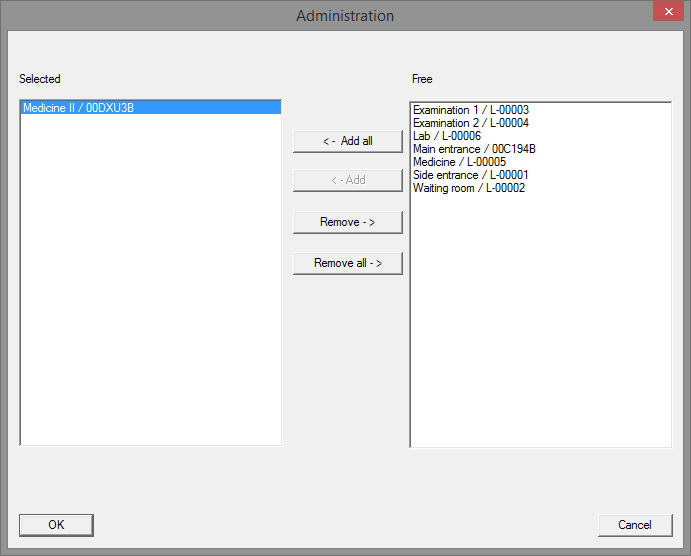
- Click on [Select] in 'Locking devices'
- Add the locking devices for the event
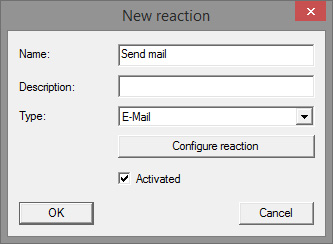
- Create a response to the event. Click on [New]
- Select the type of response time and assign a name
- Execute file: A program is started, such as batch file
- Email: forwarding of a pre-defined email to a specific recipient group
- Network task: this is where you can carry out a specific task over the SimonsVoss network, e.g. remote opening
- Network message: forwarding of a message to a predetermined network computer over the IT network
- Log file: the event is recorded in a log file for subsequent analysis - Click on [Configure response] to set up a response
- Click on [Configure time] to set the time period for the event
- Exit the set-up wizard and accept the prompt by pressing 'Yes'
- The event is now fully configured