Cylinder - MobileKey Locking cylinder (Z4) DoorMonitoring
A cylinder's properties can be configured precisely, so that the door behaves exactly as you wish.
Prerequisites
- The LSM software needs to be open
- At least one cylinder has been added to the locking plan
- You can see the locking plan matrix on the monitor screen
Double-click on the cylinder on the locking plan screen
Name
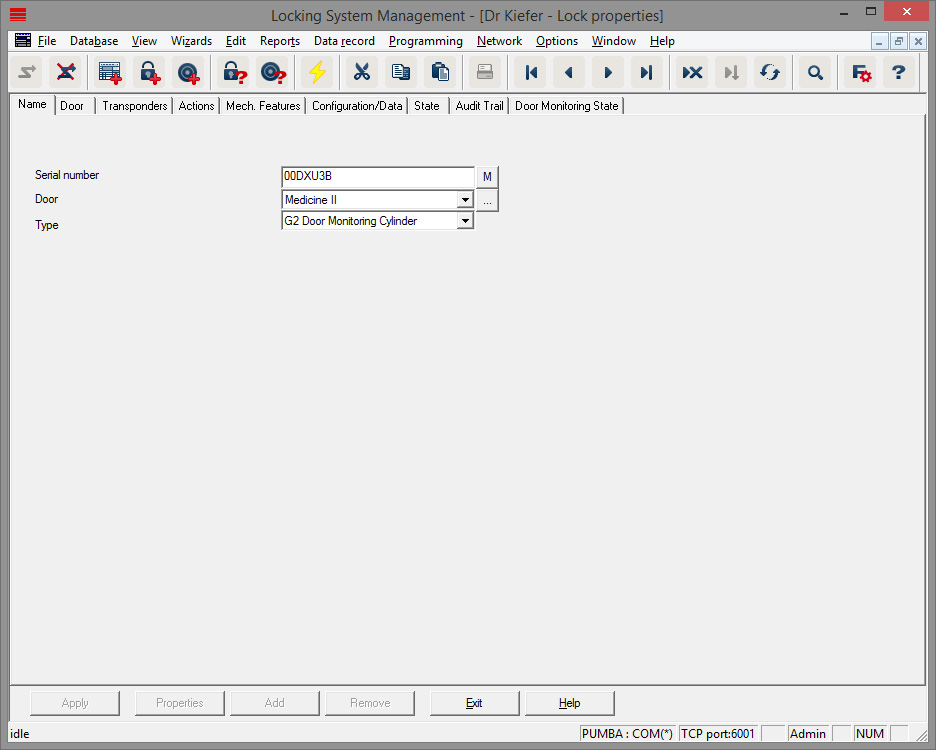
The cylinder properties are opened. You will see the 'Name' tab
- You will see the name of the door Click on the name field to change the name if required
- You can use the serial number to refer to the cylinder with a distinct identifier. The number is stored in the electronics and engraved into the cylinder body
- The type shows which locking device type it is.
Door
The 'Door' tab provides information on the door
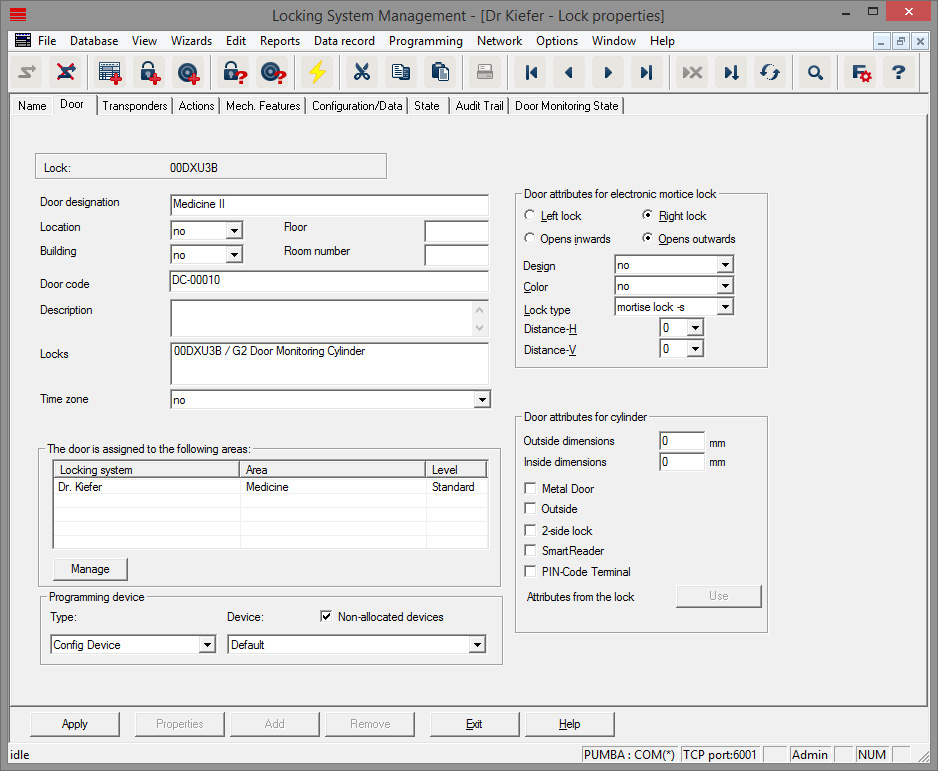
- Locking device: ID number for locking device
- Door identifier: the door name
- Location: this is where the location can be selected if one has been added
- Building: this is where the building can be selected if one has been added
- Floor: the floor on which the door is situated
- Room number: identifier for the room number
- Door code: the door ID will be generated automatically
- Description: field for additional information
- Locking devices: locking devices which are assigned to the door
- Time zone: list of the time zone plans which can be assigned to the door. This allows you to authorise certain users to use a door at certain times only
- Areas: information about the locking system, the area and the level
- Programming device: how is the locking device programmed?
- Config device: stationary programming device, such as SmartCD
- LockNode: network module. Flush fitted next to the door
- WaveNet node: CentralNode or RouterNode in connection with an internal network module (LN.I). The network card is integrated into the thumb-turn cover with LN.I
- Door attributes for mortise lock: detailed information on the lock
- Door attributes for locking cylinder: detailed information on the cylinder
Transponders
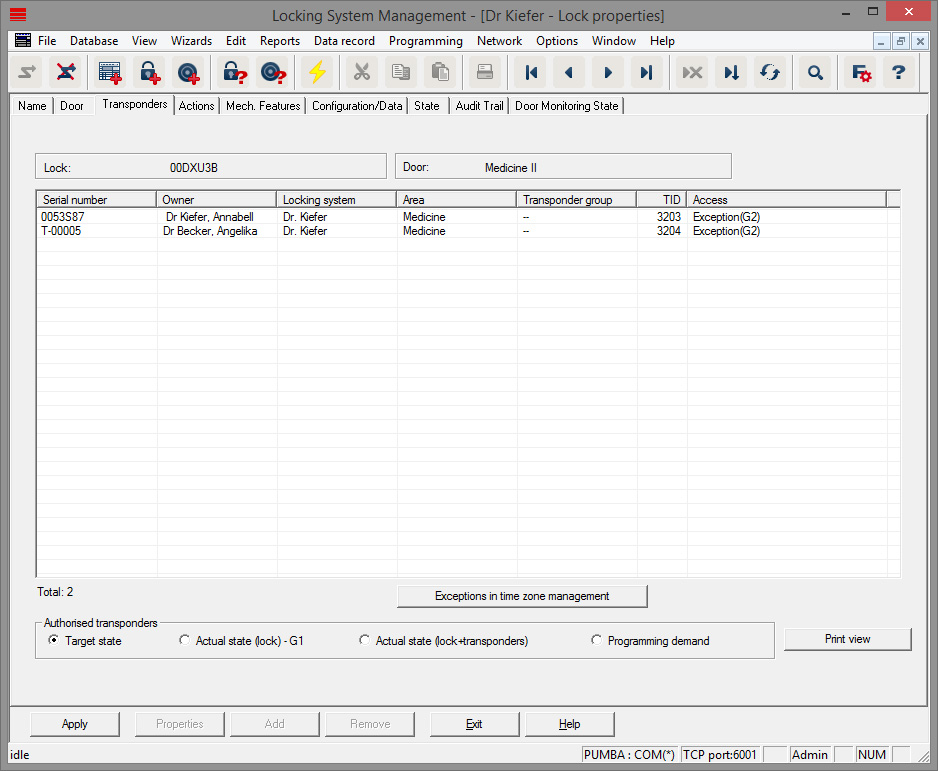
The 'Transponders' tab lists the authorised transponders
Actions
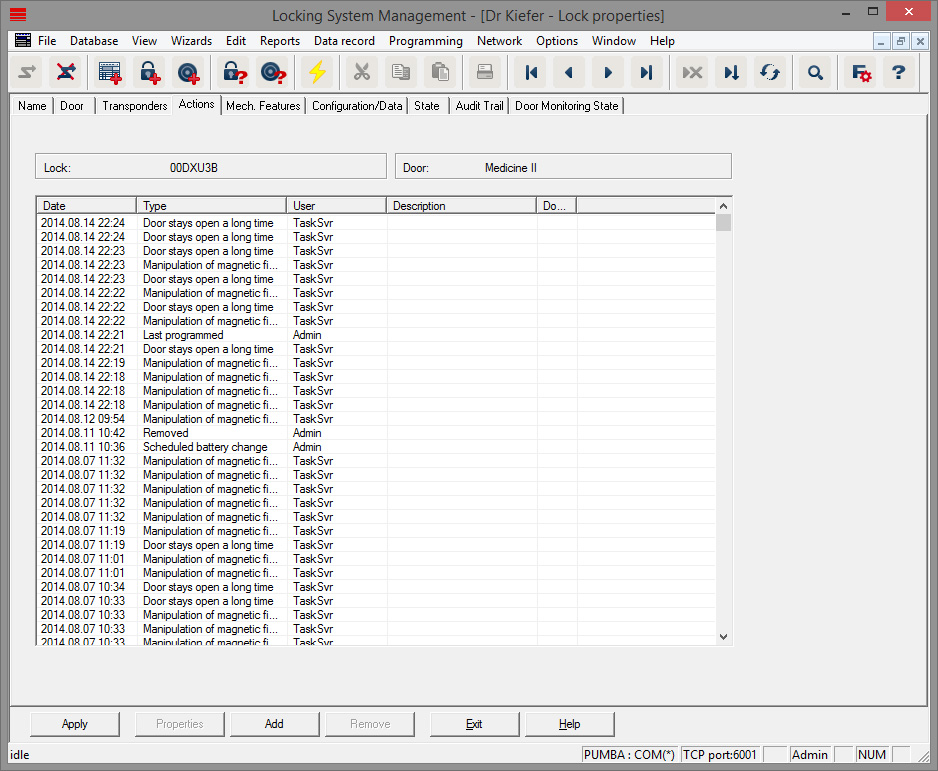
The 'Actions' tab lists the completed programming processes
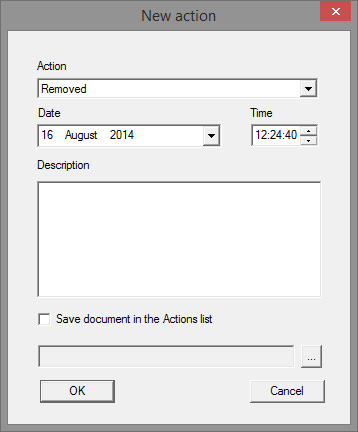
You can also log additional actions by pressing [Add]. You can use a pull-down menu to select different actions
- Removed
- Replaced
- Installed
- Last battery replacement
- Scheduled battery replacement
Features
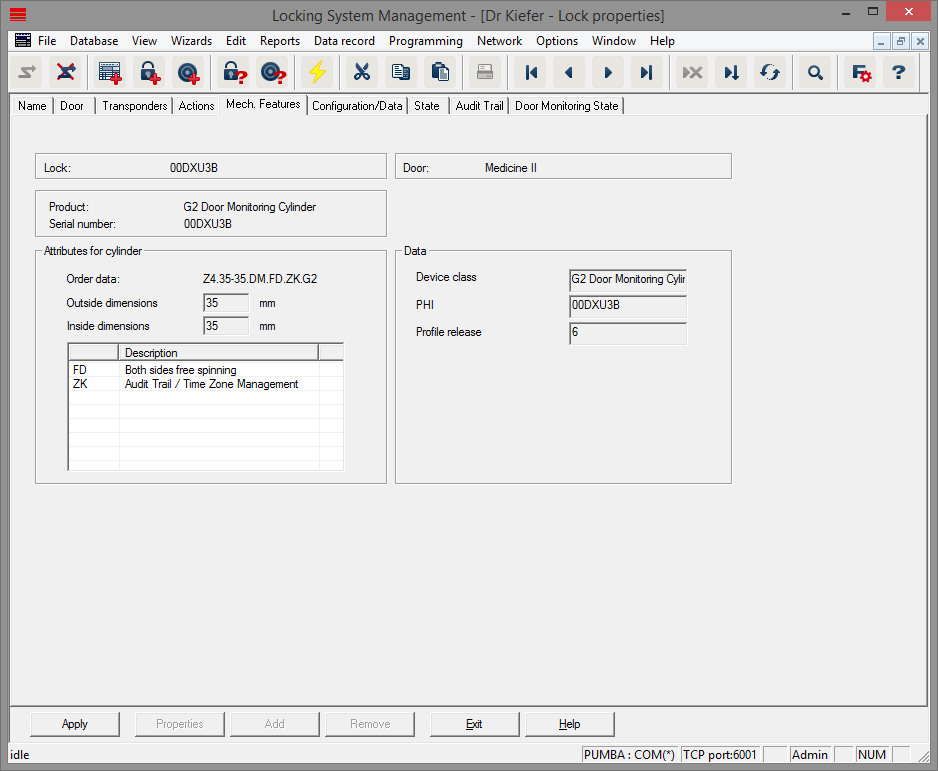
The 'Features' tab provides detailed information on the locking device
- Locking device: the serial number of the cylinder. The PHI number is given as standard. You can enter your own serial number as an alternative
- Door: door name
- Ordering information: item code of locking device
- Outside dimension: length of the cylinder from the fastening screw thread to the outer edge of the profile cylinder
- Inside dimension: length of the cylinder from the fastening screw thread to the inner edge of the profile cylinder
- There is more information in the table, depending on the locking device type
- Device class: specification of the locking device class
- PHI: Physical Hardware Identifier. A unique ID number for components
- Profile release: the profile version
Configuration/data
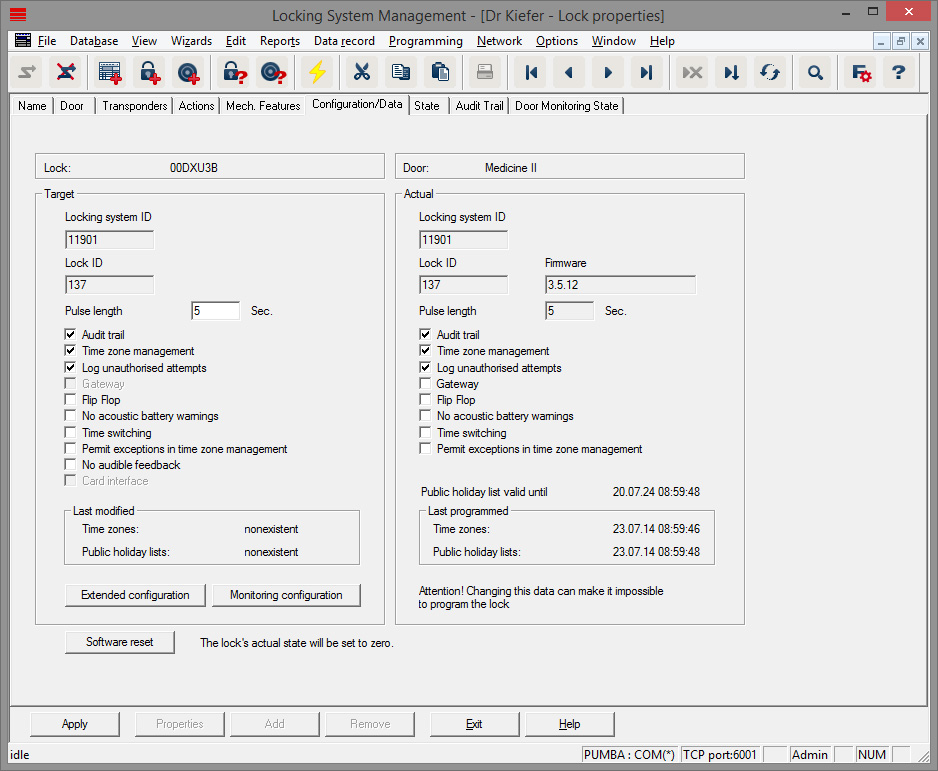
The locking device is configured in the 'Configuration/data' tab
- You will see two sections: a target value and a current value section. The target value section allows you to configure how components should behave. The two sections will be identical once you have programmed the changes
- Pulse length: how long should the cylinder engage to open? 1-25 sec
- Access control: the cylinder logs which particular transponder is used at a particular time. The .ZK option is required
- Time zone control: certain people can open the door at specific times only. The .ZK option is required
- Logging unauthorised attempted access events: the cylinder logs when someone tries to open doors which they are not authorised to use
- Flip flop: the cylinder engages permanently until another authorisation is implemented. If flip-flop mode is selected, bolt monitoring in the DoorMonitoring Cylinder must be deactivated. The bolt position is only displayed correctly if FF mode is deactivated
- No audible battery warnings: the cylinder does not emit an audible signal when the battery needs changing
- Time switch-over function: the cylinder engages automatically/manually at a specific time. You can set its exact behaviour under 'Extended configuration.' If the time switch-over function is selected, bolt monitoring in the DoorMonitoring Cylinder must be deactivated. The bolt position is only displayed correctly when the time switch-over function is deactivated
- Allow exceptions in time zone management (LSM Business and higher): exceptions can be configured in time zone management
- No audible programming feedback signals: the locking cylinder does not emit audible signals during the programming process
- Card interface: if a card reader is fitted to the cylinder, this is where you can activate the function.
- Extended configuration: this is where you can configure time switch-over behaviour. These options are active as soon as a time zone plan has been created
- Automatic engage: the locking device automatically engages at the pre-set time
- Manual engage: the locking device automatically disengages at the pre-set time. The locking device automatically engages when actuated with a transponder
- Automatic disengage: the locking device automatically disengages at the pre-set time
- Manual disengage: the locking device remains engaged at the pre-set time. The locking device permanently disengages when authorised
- Transponder always active: authorised ID media are able to continue to lock the locking device while the locking device is engaged
- Transponder only active if disengaged: authorised ID media are not able to lock the locking device while the locking device is engaged
- Software reset: the current status is re-set in the software, to re-programme components which have not been programmed completely, for example
Monitoring configuration
NOTE

The monitoring configuration has a direct influence on power consumption in the cylinder.
The shorter the sampling interval is set for the fastening screw, the greater power consumption is.
NOTE
Changes to Door Monitoring configuration do not come into effect until the cylinder has been programmed
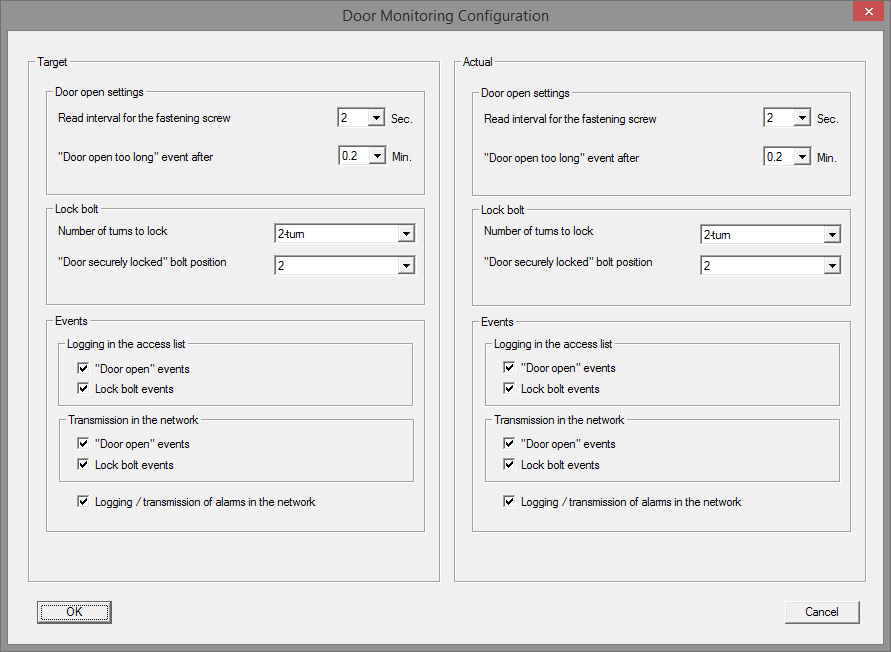
- Sampling interval for the fastening screw: The sensor in the fastening screw scans the magnetic field at adjustable intervals. The shorter the sampling interval is set, the more complete monitoring is, but also the greater power consumption is in the cylinder. A practical compromise between effective door monitoring and efficient power consumption would be 2 to 3 seconds. The function can also be switched off if opening of the door is not to be logged. Setting: off
- 'Door open too long' event after: a signal is sent to LSM after the pre-set time interval.
- Number of turns to lock: Depending on the lock, the bolt is fully extended after one or a number of turns, thus locking the door securely. You can set the number of turns in these menu items.
NOTE
The bolt position is not monitored in the .AP2 Anti-Panic Cylinder.
Select 'Off' for the number of turns for the .AP2 Cylinder
Select 'Off' for door securely locked position for the .AP2 Cylinder
- Logging of access list: this is where you enter whether 'Door open' and dead bolt events are to be saved to the access list
- Transmission in the network: this is where you enter whether 'Door open' and dead bolt events are to be saved in LSM via the WaveNet network
- Logging/forwarding of alarms in the network: this is where you enter whether alarms are to be saved in LSM via the WaveNet network. Forwarding must also be configured for the LN.I via 'Network' » 'Administer WaveNet.' The alarm alerts transmitted are:
- Door open too long
- Tampering attempt
- Door is open even though it registers as locked or securely locked
NOTE
If events are not logged in the access list, it will not be possible to establish at a later point in time who has used a particular door.
Status
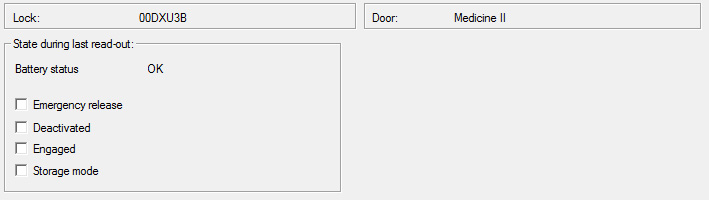
The 'Status' tab shows the last status read in the locking device
- Battery status: indicates whether the batteries need to be replaced
- Emergency release: the software uses an emergency release to engage the cylinder
- Deactivated: the cylinder is deactivated. The cylinder will not engage even if an authorised transponder is used.
- Engaged: the cylinder is engaged.
- Storage mode: the batteries have discharged beyond the second warning level and the cylinder is in storage mode. This mode can be deactivated for 30 seconds using a G2 battery replacement transponder. The cylinder can then be opened with an authorised transponder during this time.
Access list
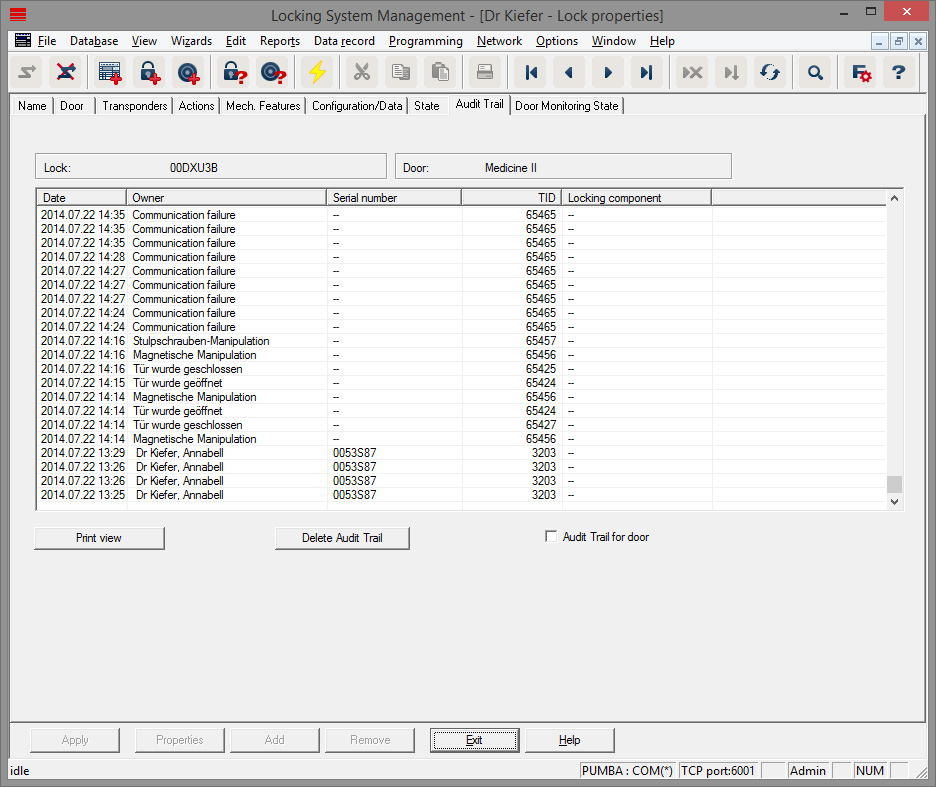
Locking devices with the .ZK option log authorised accesses with the date, time, name serial number and transponder ID
Access list for door: if more than one locking device is fitted to the door, accesses with all locking devices can be displayed
Click on [Print preview] to export the access list. You can use the print preview to print or export the list. Possible formats are:
PDF, TXT, RPT, REC, CSV, TTX, HTML 3.2 /4.0, XLS, RTF, ODBC and XML
Door monitoring status
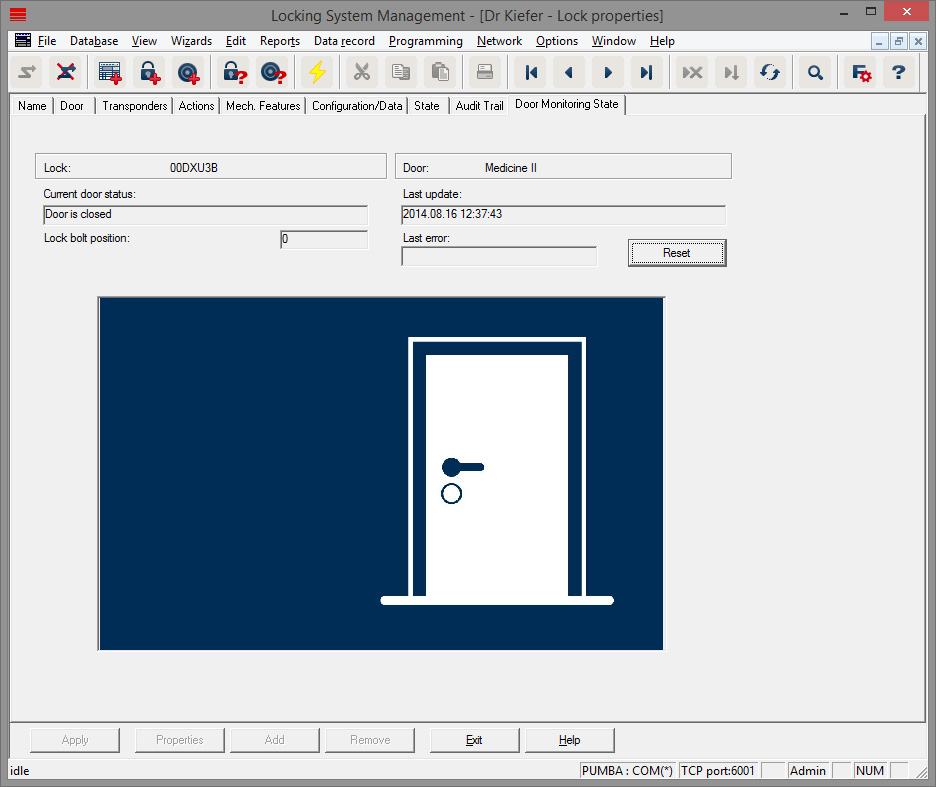
The 'Door monitoring status' tab shows the last status read in the locking device. You have two options for the status:
- The status is read automatically via an LN.I whenever a change occurs
or
- Read manually 'Programming' » Read locking device
- Current door status:
- Door open too long
- Door open
- Door closed
- Door locked
- Door securely locked
- Lock bolt position: Bolt Position 0-4, depending on the number of turns to lock
- Last error:
- undefined door status
- Door open too long
- Fastening screw has been manipulated (has been removed)
- Magnetic field manipulation (fastening screw magnetic field too extensive)
- Door has been forced open (door is opened despite locking)
- Reset: error messages must be reset manually