Doors - Smart.Surveil
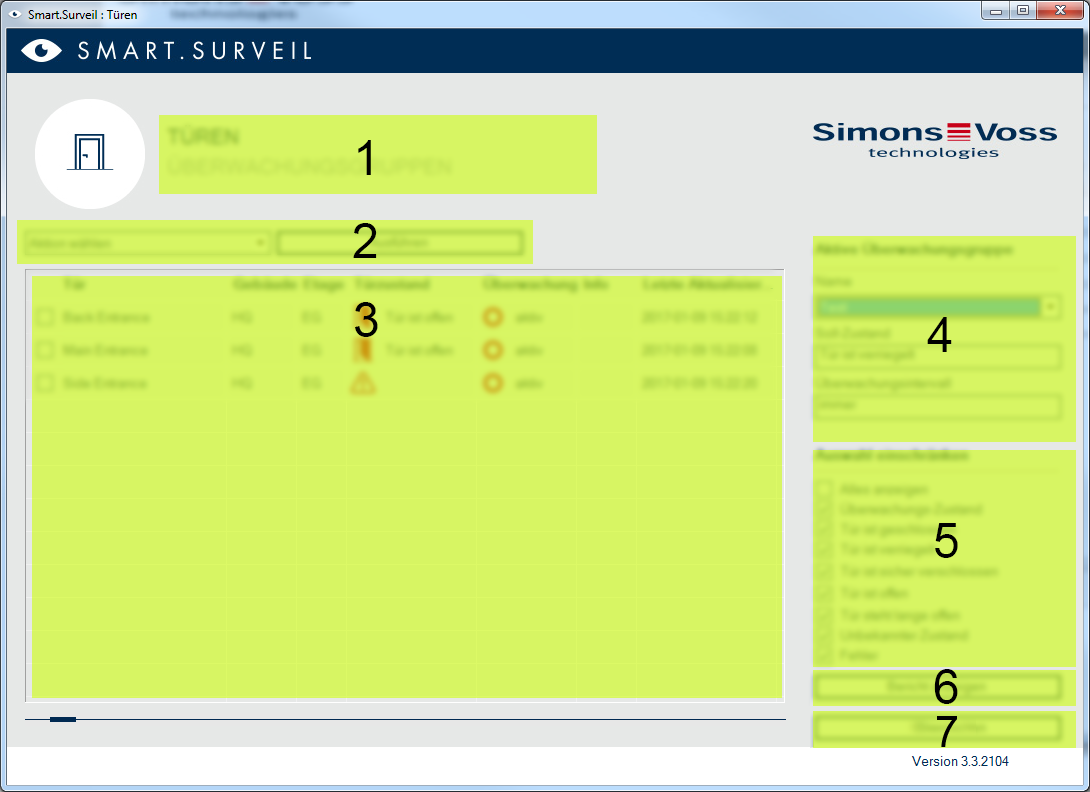
The "Doors" screen is the central starting point in SMART.SURVEIL:
- Selecting the screen. This is where you can switch between the SMART.SURVEIL "Doors" and "Monitoring groups" screens.
- Action menu. Actions can be selected and run on selected doors. The selection may vary, depending on user rights; see Rights administration. If there is a building floor plan available, you can use this floor plan to link and launch actions.
- Activate: Activate deactivated locking devices.
- Deactivate: Deactivate active locking devices.
- Reset DM errors: Reset error status, intrusion or manipulation on the DoorMonitoring cylinder.
- Read DoorMonitoring: Read DoorMonitoring status.
- Remote opening: Carry out remote opening.
- Emergency release: Engage locking device permanently.
- End emergency release: End emergency release and return locking devices to normal operating mode.
- All networked locking devices in the locking plan are displayed in their initial status in this field. The doors actually displayed depend on the selection in the "Active monitoring group" (4).
- Active monitoring group: Selecting an existing monitoring group means only the locking devices belonging to the monitoring group are displayed.
- Filter: The list of locking devices can be filtered as required.
- Show report: A report is generated with all displayed locking devices and their current statuses.
- Settings: This is where you can make settings for write protect (e.g. enable editing) and LockNode inputs.