Reset - RouterNode 2
If problems should occur or you want to reset the device to its initial state, you can reset the device with the reset button.
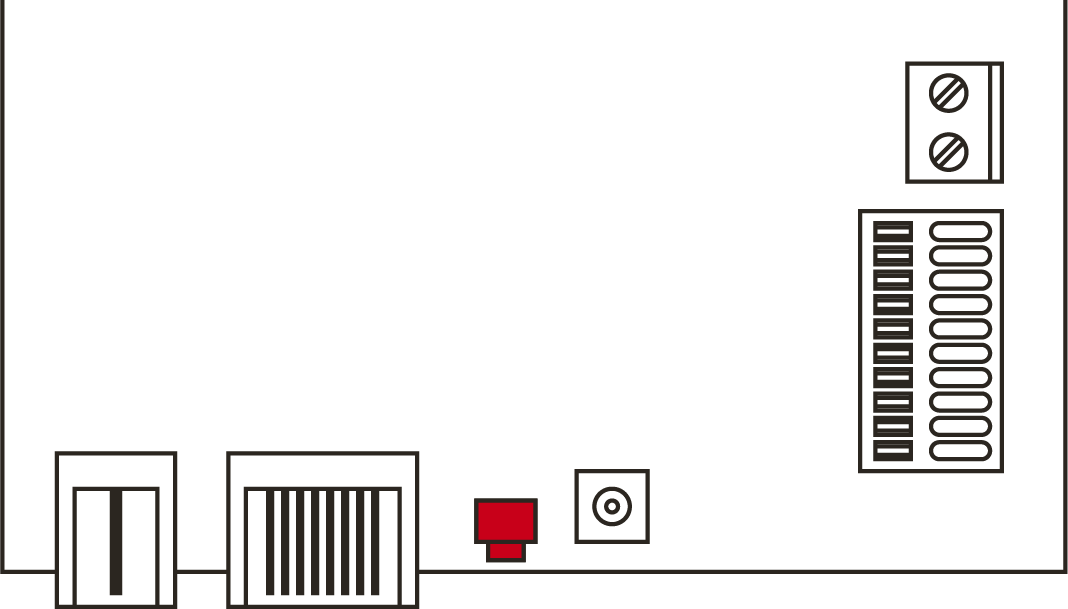
Make a distinction between them:
- Reset WaveNet configuration: Reset all WaveNet settings.
- Reset network configuration: Reset all network settings (IP address, DHCP settings, host name).
NOTE

IP address recovery
If the IP address is assigned by a DHCP server (default setting), the DHCP server assigns the IP address again directly after resetting (depending on settings of the DHCP server).
Reset WaveNet configuration
- Disconnect the power supply (round plug or network cable for PoE).
- Wait 20 seconds.
- Press and hold the reset button.
- Reconnect the power supply (round plug or network cable for PoE).
- Release the reset button after one second.
- Device flashes green again (see Signalling).
- WaveNet configuration is reset.
Reset network configuration
- Disconnect the power supply (round plug or network cable for PoE).
- Wait 20 seconds.
- Press and hold the reset button.
- Reconnect the power supply (round plug or network cable for PoE).
- Release the reset button after five seconds.
- Device flashes green again (see Signalling).
- Network configuration is reset.
NOTE
Unauthorised access with standard access data
The standard access data can be viewed freely. Unauthorised persons cannot change the access authorisations, but they can change the network configuration. You will then no longer be able to reach the device via the network and will have to reset it.
Some browsers do not transmit spaces at the beginning of the password.
- Change the default password.
- Do not start or end the password with spaces.
You receive the device with the following factory configuration:
IPaddress | 192,168,100,100 |
User name | SimonsVoss |
Password | SimonsVoss |
The IP address of your device on your network can be determined using the free OAM tool ( https://www.simons-voss.com/de/downloads/software-downloads.html). Please refer to the manual for more information.