Monitor settings - EventAgent
You can use the button toConfigure filter the view.
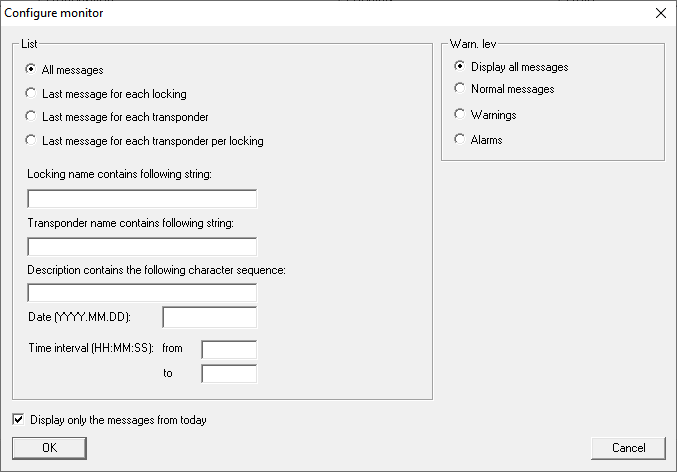
You can access the areasList and Warn. lev. .
List | |
|---|---|
| Display all messages for each lock and transponder (unless using a character string constraint or a time interval constraint). |
| For each locking device, display only the most recent network message (where available). For example, you can choose to display the door status when you send the door status as a network message with DoorMonitoring. |
| For each transponder, display only the most recent network message (where available). For example, assume you install two locking devices in a building. The users enter the building through one locking device and leaves the building via another locking device. You will only see the last-used locking device, and you will know if the user is currently in the building. |
| For each locking device, display only the most recent network message from a transponder. The messages will then include all transponder lock combinations with a network message, but will only show one network message from all the combinations (that is, the most recent). For example, assume you install two locking devices in a building. The users enter the building through one locking device and leaves the building via another locking device. For each locking device, you will see only the most recent user entry. You will be able to tell not only if the user was in the building, but also when they entered and left it. |
The name of the locking device contains the following string: | Display only network messages triggered by locking devices that contain the specified string. The filter is case-sensitive. |
The transponder name contains the following string: | Display only network messages triggered by transponders whose name contains the specified string. The filter is case-sensitive. |
The description contains the following string: | Display only network messages whose message texts contain the specified string. The filter is case-sensitive. |
Date (YYYY.MM.DD) | Display only network messages from a particular time period. |
Time interval (HH:MM:SS) from | |
to | |
 All messages
Warn. lev. | |
|---|---|
| View all network messages, independent of their classification in the LSM event manager. |
| Display only network messages classified as "normal" in the LSM event manager. |
| Display only network messages classified as "warnings" in the LSM event manager. |
| Display only network messages classified as "alarms" in the LSM event manager. |
Confirm your entries using the buttonOK.
Network messages from today
Uncheck the checkbox Display only the messages from today to include network messages that were not delivered today.
NOTE

Window crash Monitor
Unchecking the checkbox may cause you to see an error message. The EventAgent will thenMonitor crash immediately when the window is opened. In this case, you will no longer be able to access the checkbox to undo the input.
- Start the EventAgent as an administrator.
- Click on the buttonMonitor.
- Click on the buttonConfigure.
- Re-activate the checkbox
 Display only the messages from today .
 - Click on the buttonOK.
- You should now see the window appearMonitor normally again.