Browser interface - OAM tool
You can use the Ethernet interface in the browser to configure the following for RouterNodes, GatewayNodes and SmartBridges:
- Allow changes using the OAM tool
- Password for the web interface
- IP address/DHCP mode
- Opening and closing the SMTP port
Launching
You receive the device with the following factory configuration:
IP address | 192.168.100.100 (if no DHCP server is found) |
Subnet mask | 255.255.0.0 |
User name | SimonsVoss |
Password | SimonsVoss |
The procedure is described for RouterNodes. Use the same procedure for SmartIntego GatewayNodes and MobileKey SmartBridges.
Change the default password after you launch for the first time.
- RouterNode IP known (see Determining and setting the IP address).
- Browser open.
- User credentials known for the browser interface (name and password).
- Enter the IP address in your browser’s address field.
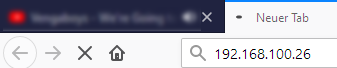
- Press the Enter key to confirm.
- The Authentication required window will open.
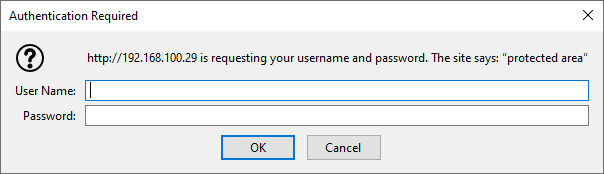
- Enter the login credentials.
- Click on the OK button.
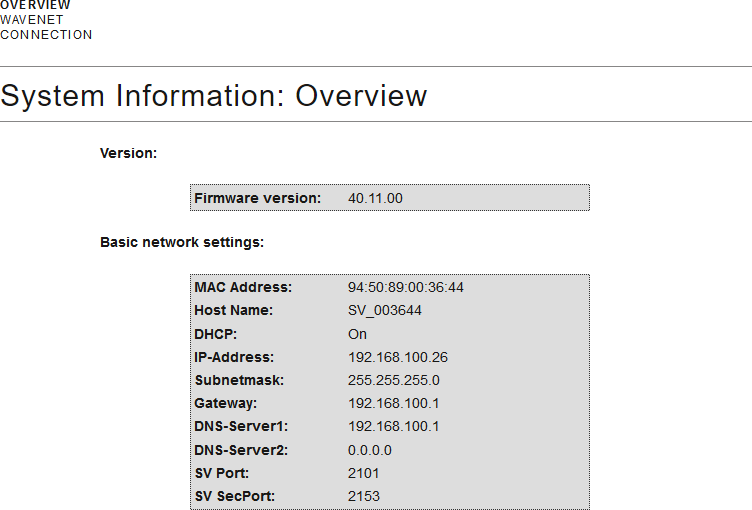
- The browser interface system overview is visible.
NOTE

Web interface can no longer be used with the default password with firmware 40.12 and above
The browser interface remains blocked in firmware version 40.12 or above until the default password has been changed.
- Change the default password.
- Browser interface is unblocked and settings can be changed.
NOTE
Unauthorised access with standard access data
The standard access data can be viewed freely. Unauthorised persons cannot change the access authorisations, but they can change the network configuration. You will then no longer be able to reach the device via the network and will have to reset it.
Some browsers do not transmit spaces at the beginning of the password.
- Change the default password.
- Do not start or end the password with spaces.
Blocking/enable change to the IP address using the OAM tool
If you do not enable the , you will not be able to use the OAM tool to perform updates.
- Browser interface opened.
- Open the PORT tab using CONFIGURATION.
- You will see an overview of the TCP port settings for RouterNode 2.
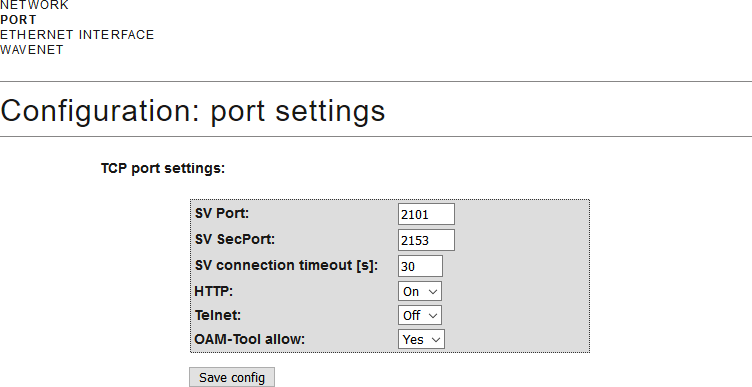
- Select the option Yes (enable the OAM tool to change the IP) or the option No (block change to the IP by the OAM tool) from the drop-down menu.
- Click on the button Save.
- Changing the IP address using the OAM tool is locked/allowed.
Change password
Some browsers do not register any spaces included at the start of a password, so do not begin your password with spaces.
- Browser interface opened.
- Open the PASSWORD tab using ADMINISTRATION.
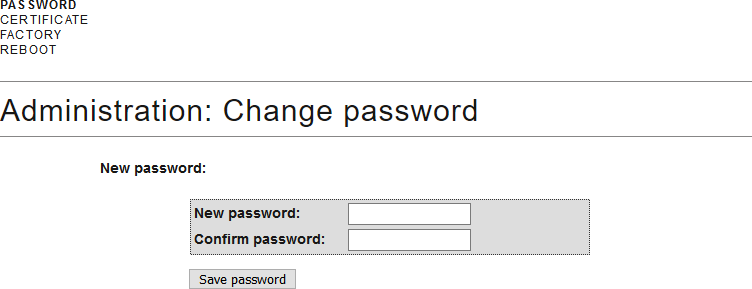
- Enter your new password.
- Repeat your new password.
- Click on the Save password button.
- Password is now changed.
Opening and closing the SMTP port
The SMTP port is open ex works and after each reset. As a general rule, ports that are not required should be closed. If you close the SMTP port, the OAM tool will no longer find RouterNode 2.
- Browser interface opened.
- Open the PORT tab using CONFIGURATION.
- You will see an overview of the TCP port settings for RouterNode 2.
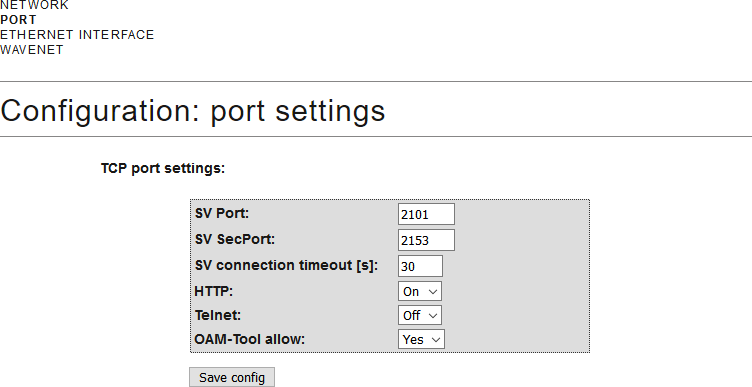
- Select the Yes option (open SMTP port) or the No option (close SMTP port) from the drop-down menu.
- Click on the button Save.
- The SMTP port is open or closed.