Advanced LSM configuration settings - LSM 3.6 SP1 Basic update
- Adjust the local firewall rules on the client and server if necessary.
- Adjust the reports if necessary (address data, logos, additional texts and similar).
- Create/edit the user accounts for LSM if necessary.
- If necessary: install other clients.
- Change over to the server (on which the ADS has been installed).
Update and initialize CommNode server
- Open the installation directory of the previous CommNode server.
- Execute the file uninstall_CommNodeSvr.bat with administrator rights.
- Old CommNode server removed.
- Call up the installation directory of the CommNode server (e.g. C:\Program Files (x86)\SimonsVoss\CommNode_3_6)
- Execute the file install_CommNodeSvr.bat with administrator rights.
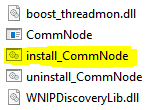
- CommNode server initialized.

- If no LSM GUI has been installed on the server, install the OLEDB driver (oledb.exe) now.
- Change the language to English (as with ADS Server installation).
- Launch LSM and log on.
- Navigate to the menu item Network - and configure/change the CommNode server's name and computer name if necessary.
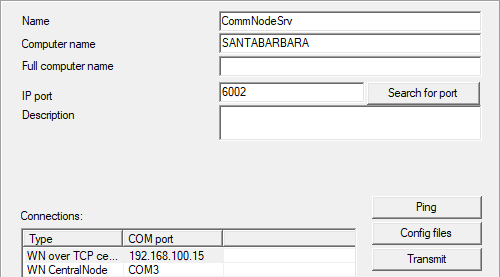
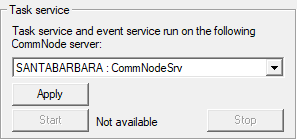
- If necessary: Configure the task manager and add the CommNode server to it.
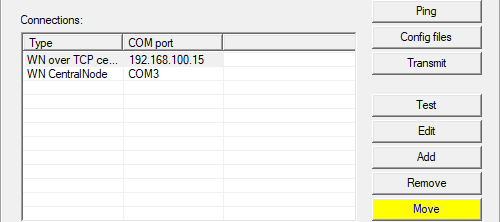
- If present and not implemented in previous versions: relocate the existing WaveNet router from local connection points to the existing CommNode server.
- Create the configuration files in the communication node
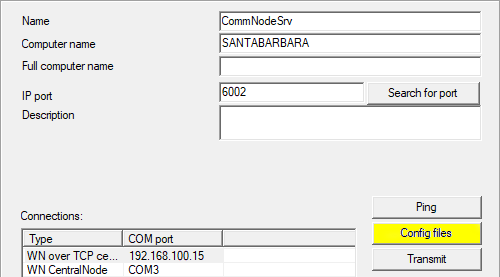
- Copy the 3 files created on the server into the CommNode server installation directory (C:\Program Files (x86)\SimonsVoss\CommNodeSvr_3_6\)
- Then launch the CommNode server service (SimonsVoss CommNode Server) manually (in the Services window on your Windows operating system).
- Check the connection by pressing on ping in the communications node.
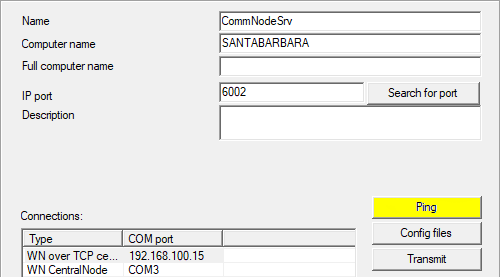
- Future WaveNet components all need to be assigned to the communication node and not to local connection points.