Firmware update - AX firmware update for AX products
WARNING

Blocked escape routes and access during the update
The transmission of the firmware could take several minutes (depending on the size). During this time it's not possible to use the locks. As a consequence, escape routes might be temporarily not passable.
- Ensure that escape and emergency routes are always passable!
- For example, leave doors open during the update.
- SmartStick AX is connected.
- AX product is reset.
- Batteries of the AX product are as good as new.
- Start the program AX firmware update.
- AX firmware update opens.
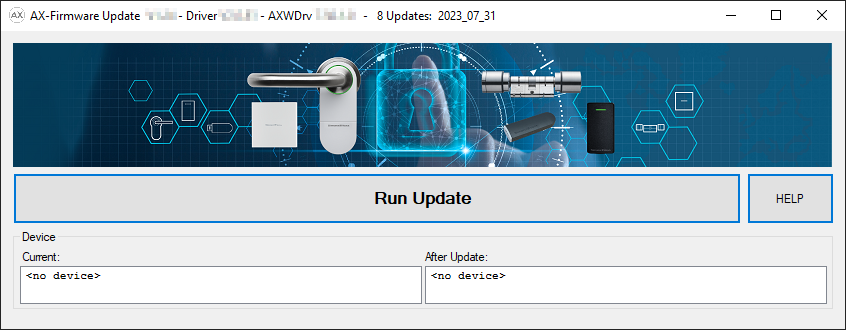
- Wake up the BLE interface of your AX product (see manual/quick guide for the respective AX product).
- Within 30 seconds, click on the button Run Update.
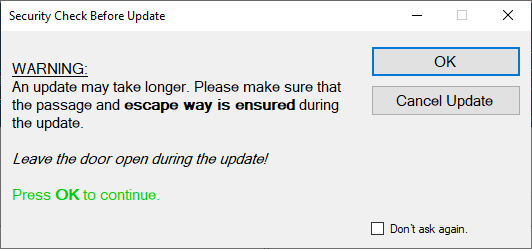
- Confirm the message window with the button OK.
- AX firmware update searches automatically for near and awake AX products.
(The AX products with the strongest signal are listed first). The selected AX product blinks and beeps shortly. 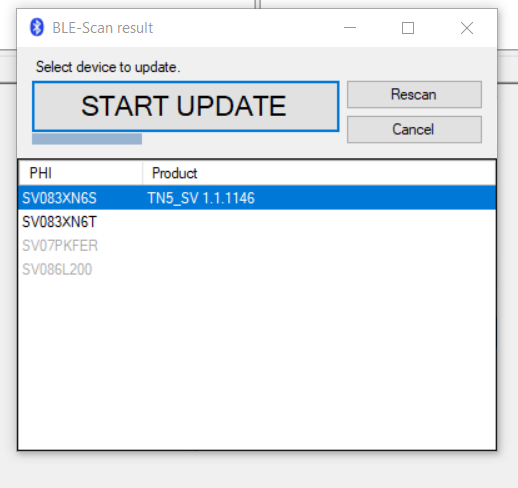
NOTE

Automatic firmware update for products found
After a countdown (recognisable by the blue bar) AX firmware update automatically starts to update the firmware of the selected product.
- If necessary, restart the countdown by clicking on the button Rescan.
- If necessary, exit the update window with the button Cancel.
- Wait for the countdown or alternatively click on the button START UPDATE.
- AX firmware update starts a check and if the check is positive, the firmware update starts.
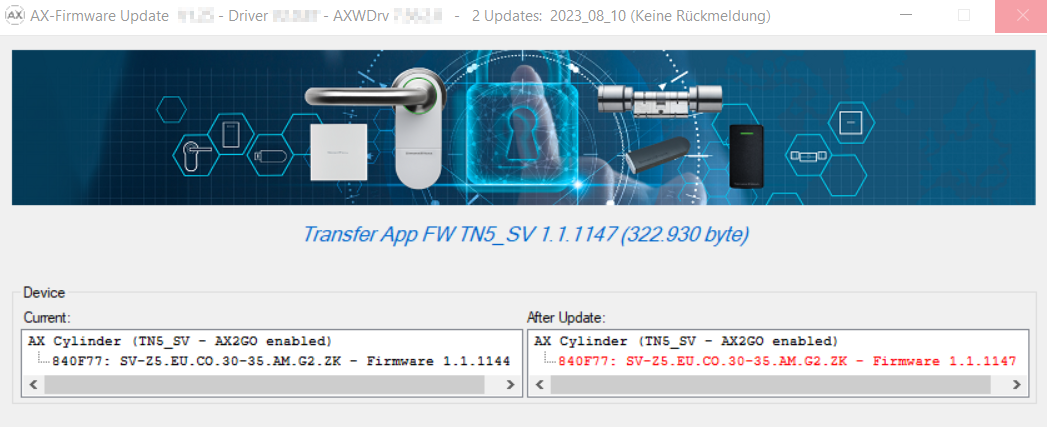
- This may take up to several minutes. During this time the AX producrt may beep and/or restart.
- After the firmware update the current firmware version will be displayed green in the area After Update.
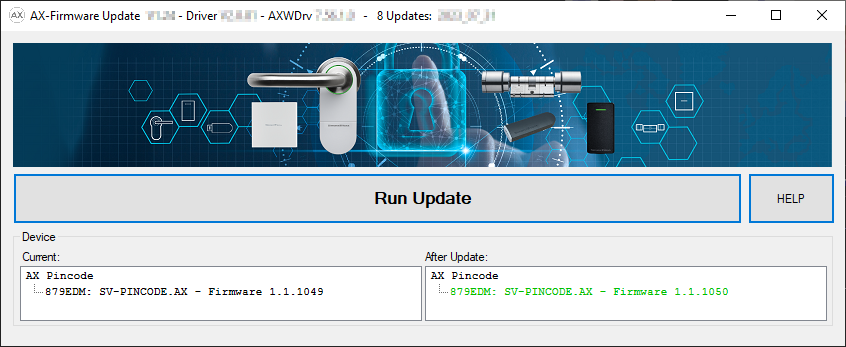
- If necessary, make a note of the new firmware version on the AX product, e.g. on the label.
- The firmware of the AX product is now up to date.