Available SimonsVoss online manuals
System 3060
Communication matrix - Connections and ports
Information - Data protection in SimonsVoss systems
Manual - AX2Go
Manual - AX firmware update for AX products
Manual - AXM Classic
Manual - AXM Lite
Manual - AXM Plus
Manual - BAMO WaveNet radio tester
Manual - CD.Starter.G2
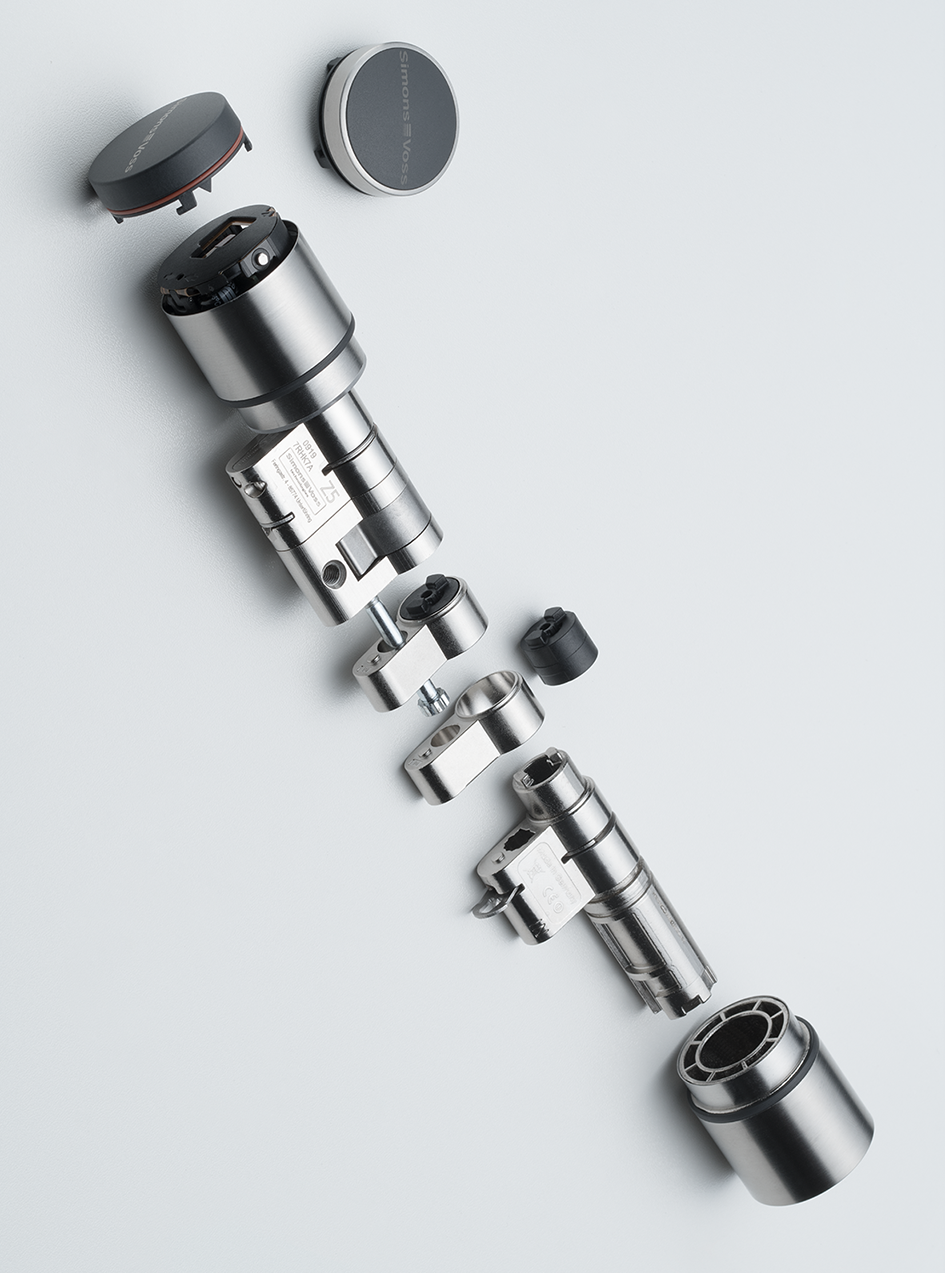
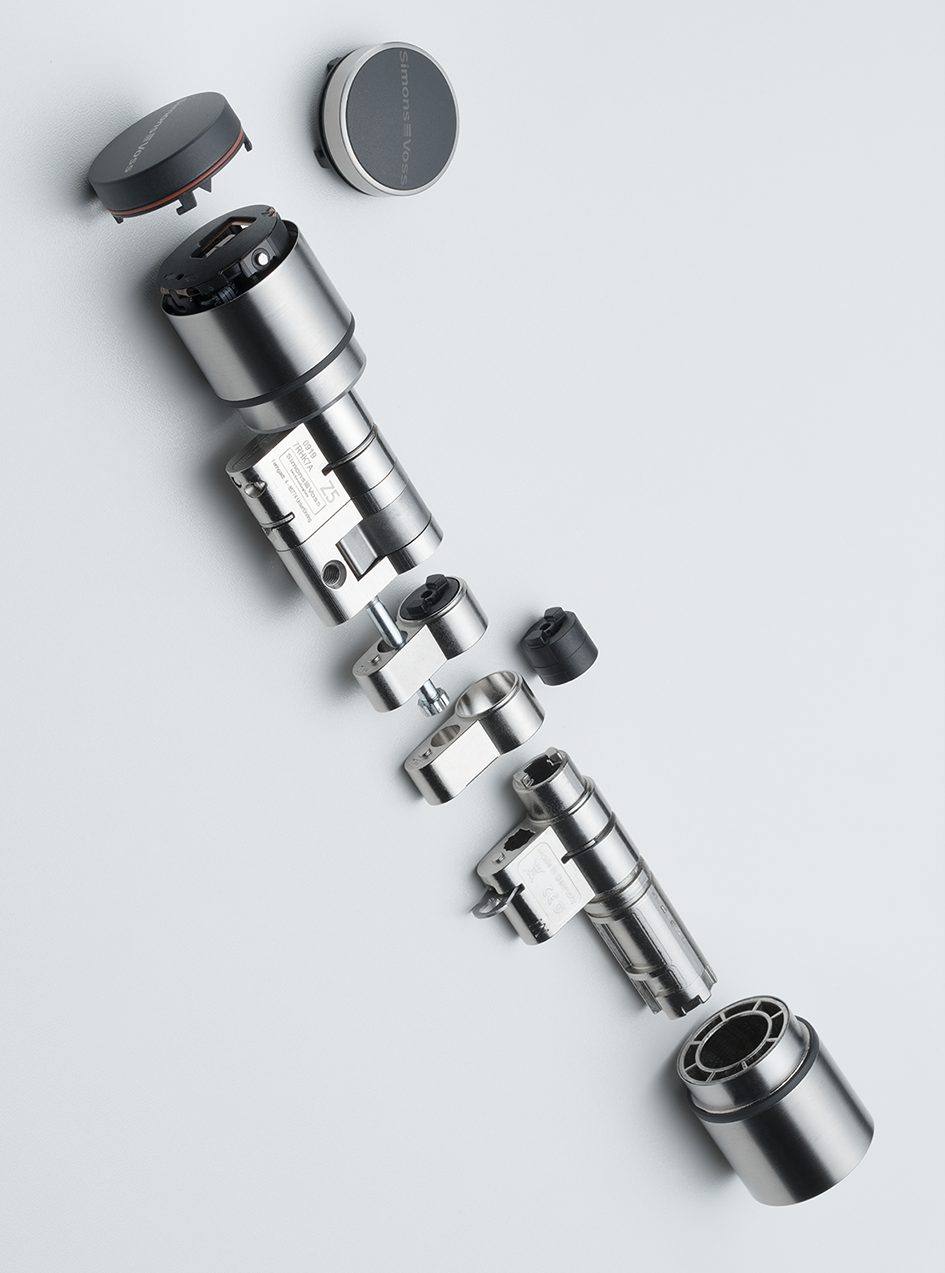
Manual - Digital Cylinder AX (Z5)
Manual - Digital Cylinder AX (Z5) Modularity
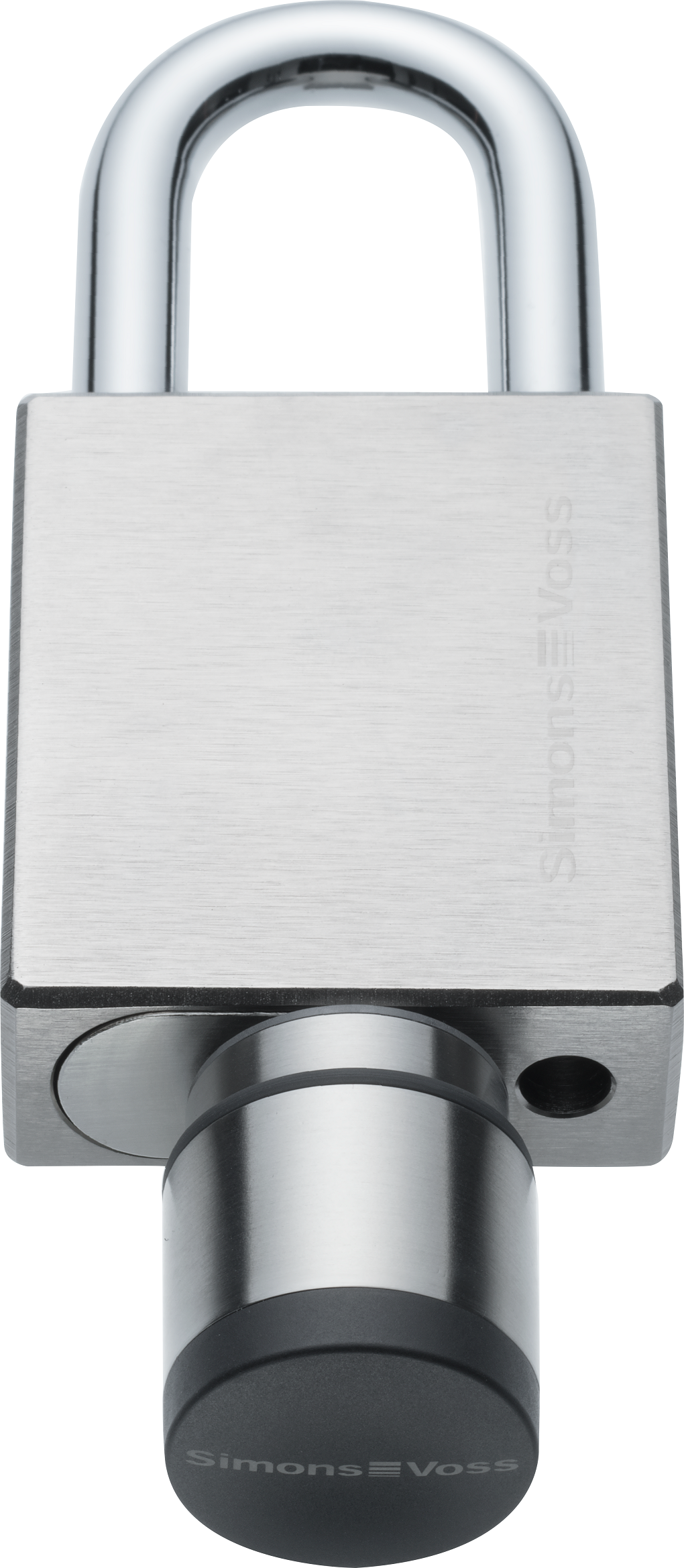
Manual - Digital Padlock AX (Z5.PL)
Manual - Digital SmartHandle AX
Manual - EventAgent
Manual - G2 EX transponder
Manual - G2 protocols
Manual - G2 Transponder
Manual - Locking cylinder (Z4) 3061
Manual - Locking cylinder (Z4) DoorMonitoring
Manual - LSM 3.6 Basic
Manual - LSM 3.6 Basic Online
Manual - LSM 3.6 Business + Prof.
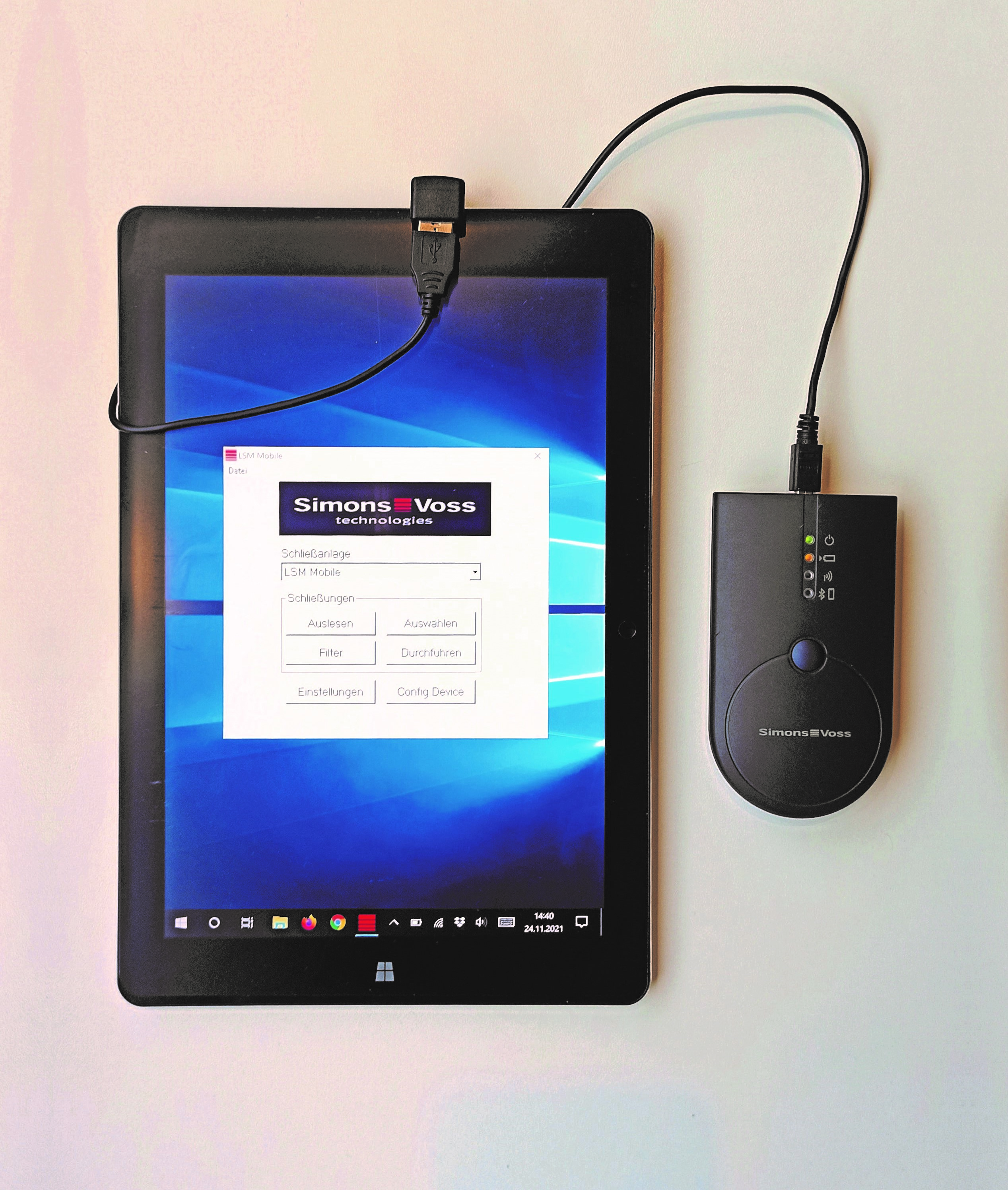
Manual - LSM Mobile
Manual - LSM Professional SmartCD/SmartStick AX
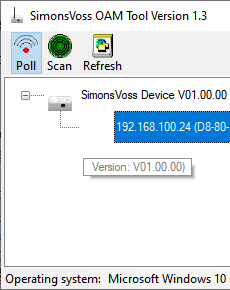
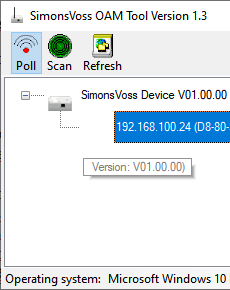
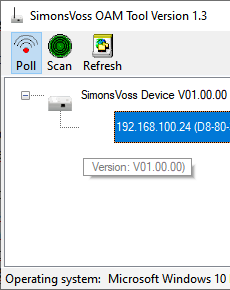
Manual - OAM tool
Manual - Padlock (*Z4.PL)
Manual - PIN code keypad (offline)
Manual - PinCode keypad AX
Manual - PIN code terminal
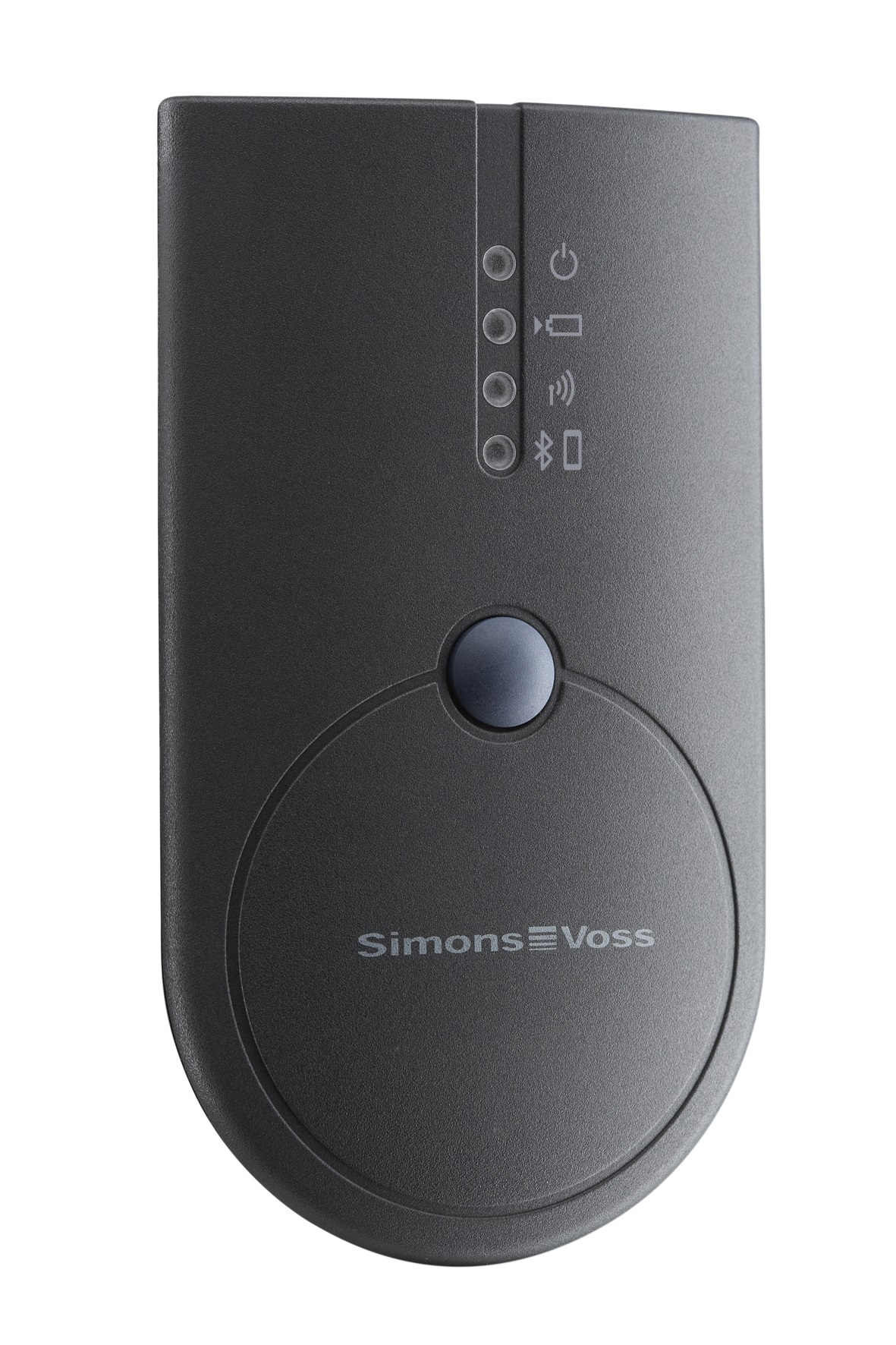
Manual - Programming device SmartCD2.G2
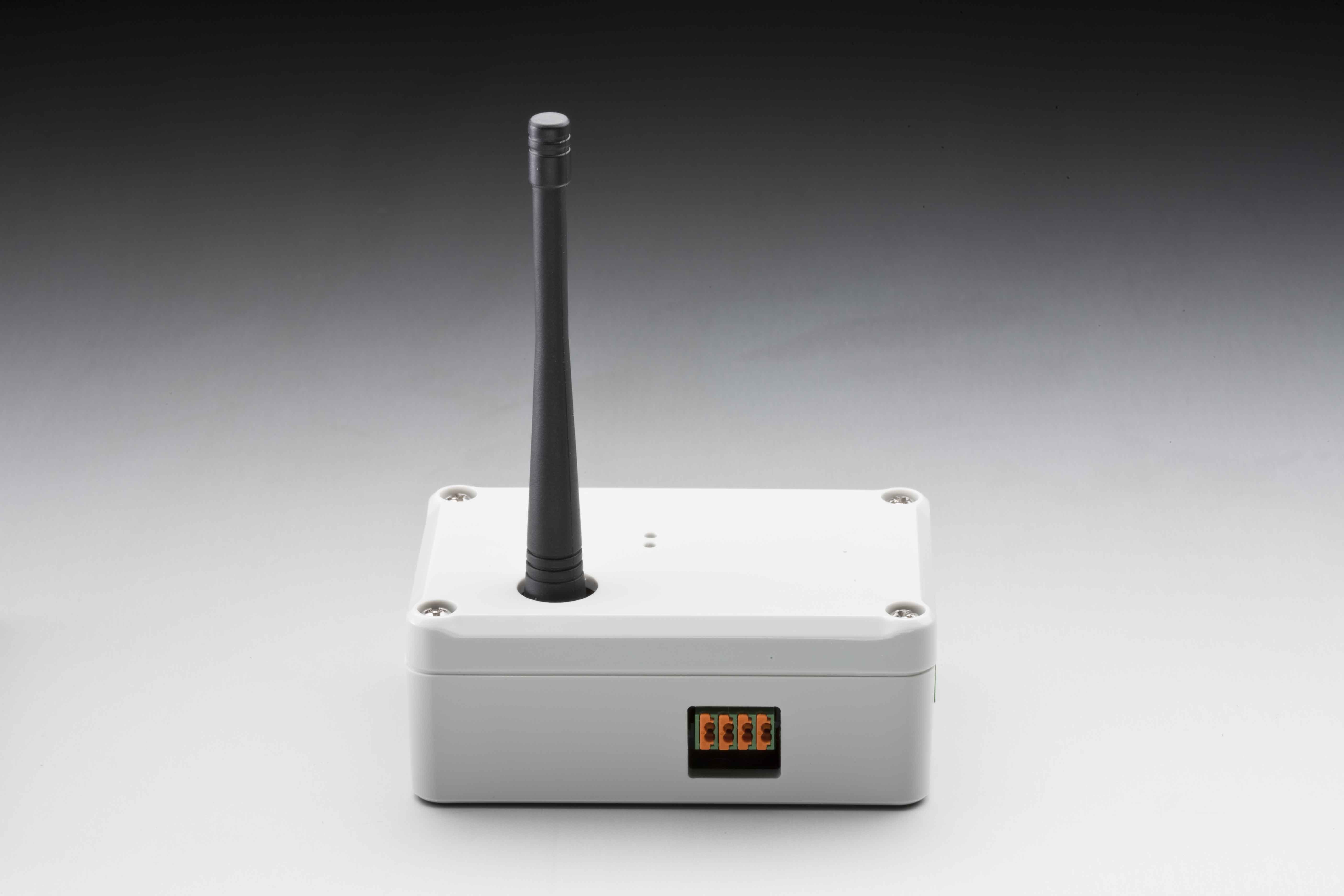
Manual - RouterNode
Manual - RouterNode 2
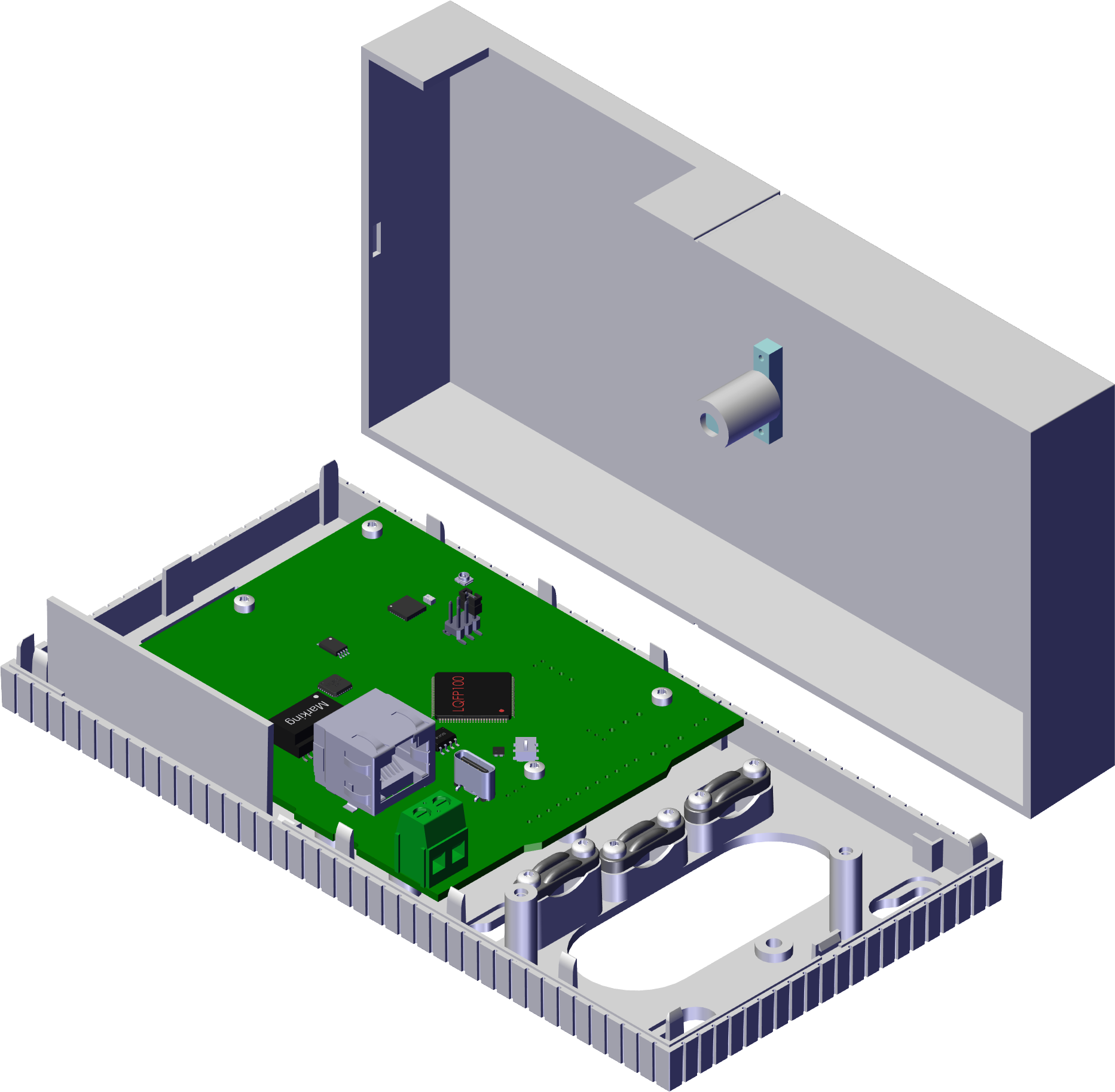
Manual - RouterNode 3
Manual - Smart.Surveil
Manual - Smart.XChange
Manual - SmartCD.MP
Manual - SmartHandle 3062
Manual - SmartHandle AX Advanced
Manual - SmartLocker AX
Manual - SmartOutput module with SmartRelay 3
Manual - SmartRelay, SmartRelay G2
Manual - SmartRelay 3 system
Manual - SmartRelay AX Classic
Manual - VdS shunt lock
Manual - WaveNet
Quick guide - Programming config device SmartStick AX
Quick guide - Transponder terminal
System description - System 3060
SmartIntego
Information - SmartIntego specifications
Manual - BAMO WaveNet radio tester
Manual - Digital Cylinder AX (Z5) Modularity
Manual - Digital Cylinder AX (Z5) SmartIntego
Manual - Digital Padlock AX (Z5.PL) SmartIntego
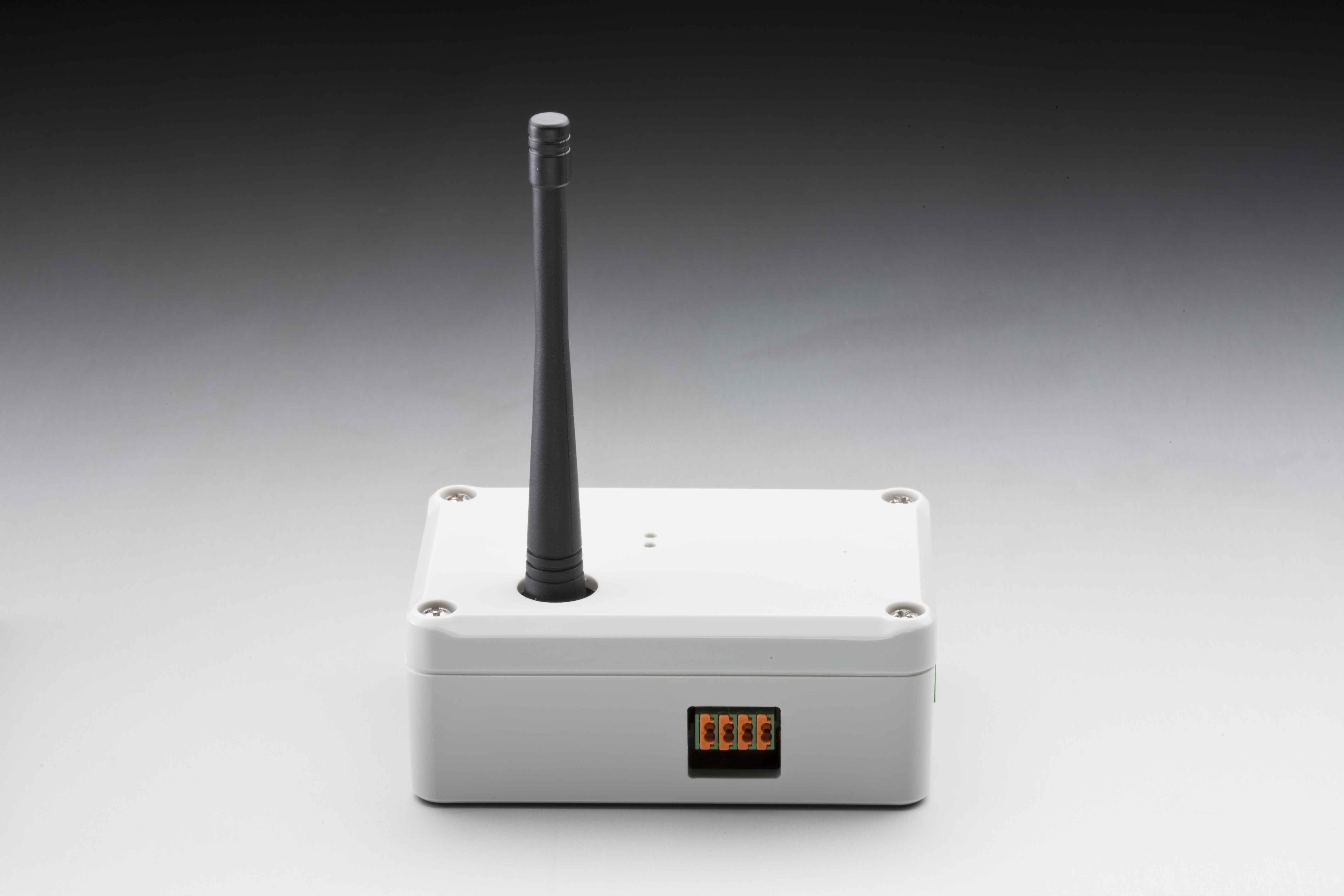
Manual - GatewayNode
Manual - Gateway Node 2
Manual - OAM tool
Manual - Padlock (*Z4.PL)
Manual - SI.SMARTCD
Manual - SmartHandle AX Advanced SmartIntego
Manual - SmartHandle SmartIntego
Manual - SmartIntego Digital SmartHandle AX
Manual - SmartIntego Locking cylinder (Z4)
Manual - SmartIntego Locking cylinder (Z4) DoorMonitoring
Manual - SmartIntego OSS
Manual - SmartIntego PIN code keyboard online
Manual - SmartLocker AX SmartIntego
Manual - Step-by-Step SVCN
Manual - Step-by-Step WO
Quick guide - Programming config device SmartStick AX
System description - System description SVCN
System description - System description WO
MobileKey
Manual - MK.CD.Starter.G2
Manual - MobileKey
Manual - MobileKey Locking cylinder (Z4)
Manual - MobileKey Locking cylinder (Z4) DoorMonitoring
Manual - MobileKey PIN code keyboard online
Manual - MobileKey PIN code keypad (offline)
Manual - MobileKey SmartRelay
Manual - MobileKey Transponder
Manual - OAM tool
Manual - Padlock (*Z4.PL)
Manual - SmartBridge
System description - MobileKey